Best CRM Software for New Zealand Immigration Advisers: 2026 Buyer’s Guide
A practical way to compare immigration CRM and case-management software by client files, forms, email, billing, security, support, and migration effort.
The short answer
The best CRM for a New Zealand immigration practice is the one that matches its real case workflow. It should keep each matter separate, retain the complete working file, support the New Zealand forms your team uses, connect case email and give you clear evidence for security, permissions, migration and support.
A long feature list does not tell you whether a platform will keep a busy immigration practice organised. The useful question is whether your team can complete an ordinary matter without rebuilding the record across inboxes, cloud folders, spreadsheets and separate signing tools.
Use this guide as a practical comparison framework. Test each product with the same client scenario, record the evidence you saw and give the workflows your team uses every day more weight than features you may never use.
Five core areas to evaluate
Client and case structure
One client should be able to have several clearly separated immigration matters without duplicating the person or mixing the case records.
The complete working file
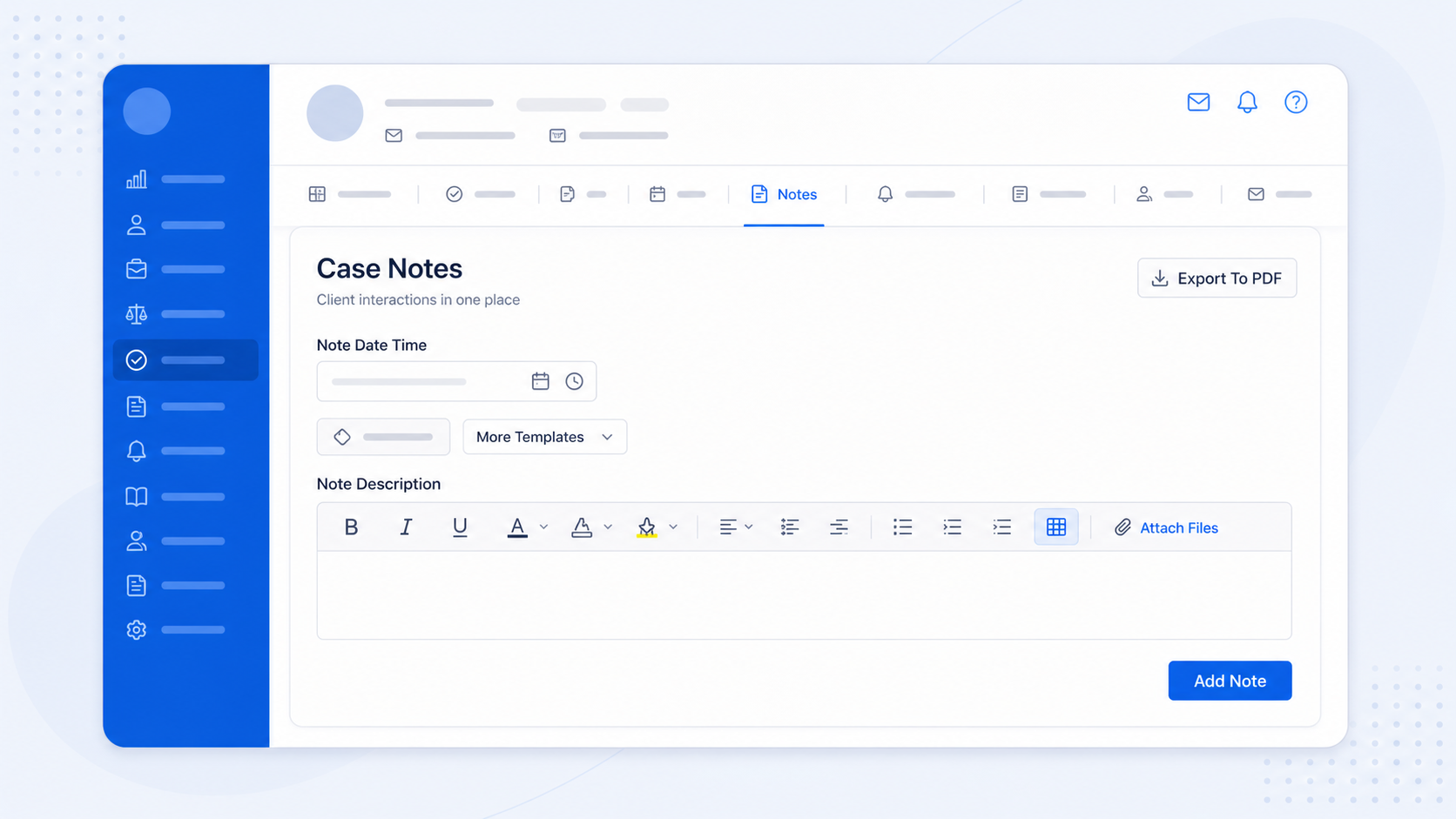
Documents, notes, tasks, reminders, forms, agreements, emails and finance records should remain connected to the correct case.
New Zealand form workflows
Check how supported INZ PDF forms are added, completed, signed, retained and reviewed when a new official version becomes available.
Email that stays with the matter
Use the mailbox your practice relies on and confirm how sent messages, replies, attachments and uncertain matches are handled.
Security, access and support
Ask for current security evidence, permission controls, export options, onboarding help and a clear route for ongoing support.
Use an evidence-based comparison scorecard
Give each area a pass, partial or fail. Write down what you actually saw during the trial instead of relying on a sales promise.
| Area | Evidence to look for | Trial test |
|---|---|---|
| Client and case structure | One client with distinct cases and separate matter histories | Create one client with two different visa matters and switch between them. |
| Case records | Documents, notes, tasks, forms, agreements, emails and finance on the case | Add one of each and confirm every record is visible from the correct matter. |
| INZ PDF forms | Online completion, signature, completed PDF retention and controlled updates | Assign a supported form and inspect how a replacement version is presented. |
| Connected mailbox, case filing and a review queue for uncertain matches | Send a message, receive a reply and test an email that could match two cases. | |
| Agreements | Reusable wording, placeholders, review before sending and signed PDF retention | Create a case agreement using the template your organisation already uses. |
| Security and access | Current evidence, clear permissions, backups and practical export options | Ask to see the exact controls and test the permissions with a non-admin user. |
| Onboarding and support | A realistic migration plan and support from people who understand the workflow | Ask how one active matter would move from your current tools into the platform. |
Start with the file you must be able to explain
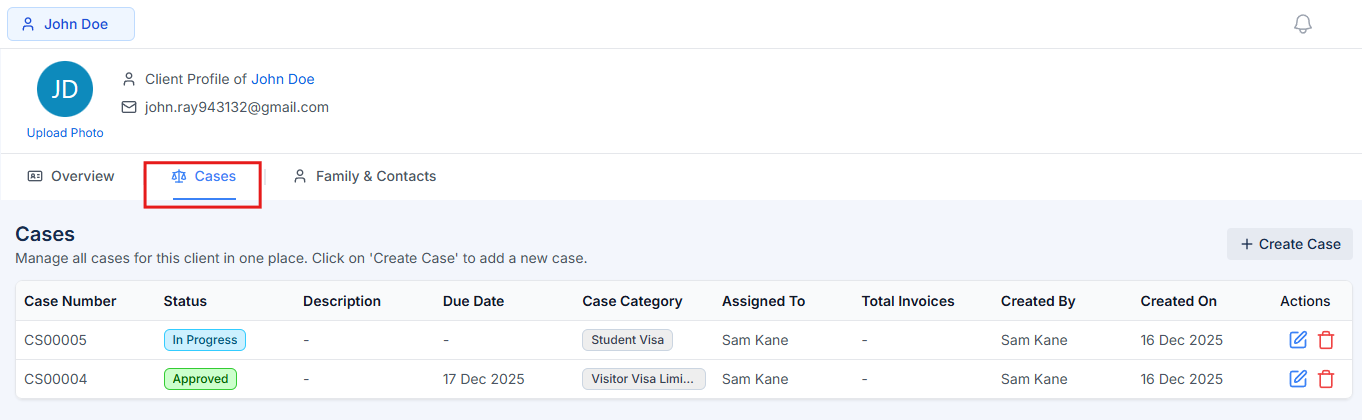
Create one test client with two different matters. The product should preserve the boundary between those cases while retaining the relationship to the same person.
Test the New Zealand-specific work
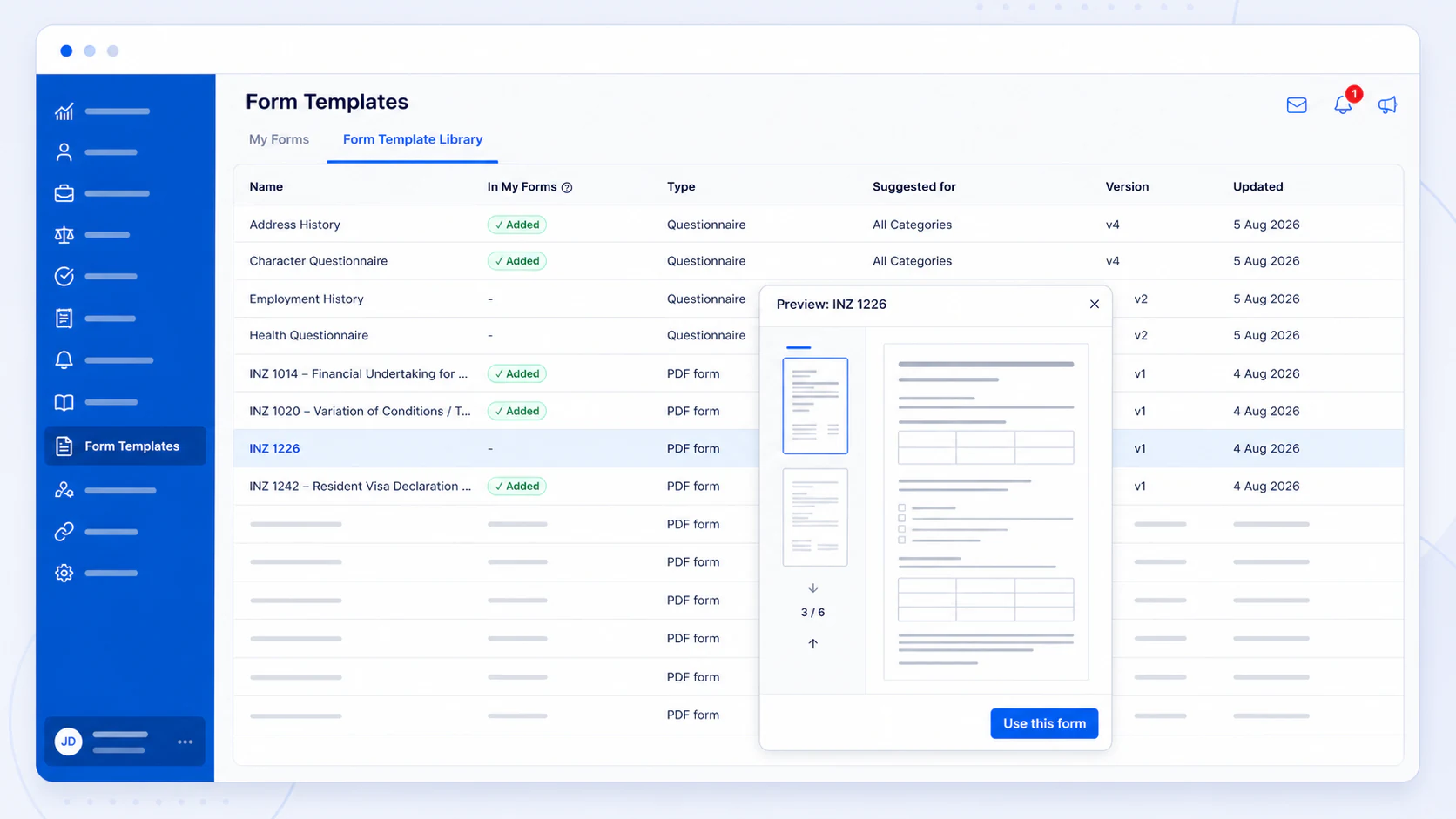
If your practice uses INZ declarations or other official PDFs, check the original form, online completion, signature, finished PDF and the process used when a supported official version changes. Your organisation should remain in control of whether its copy is replaced.
Follow an email from the inbox to the case
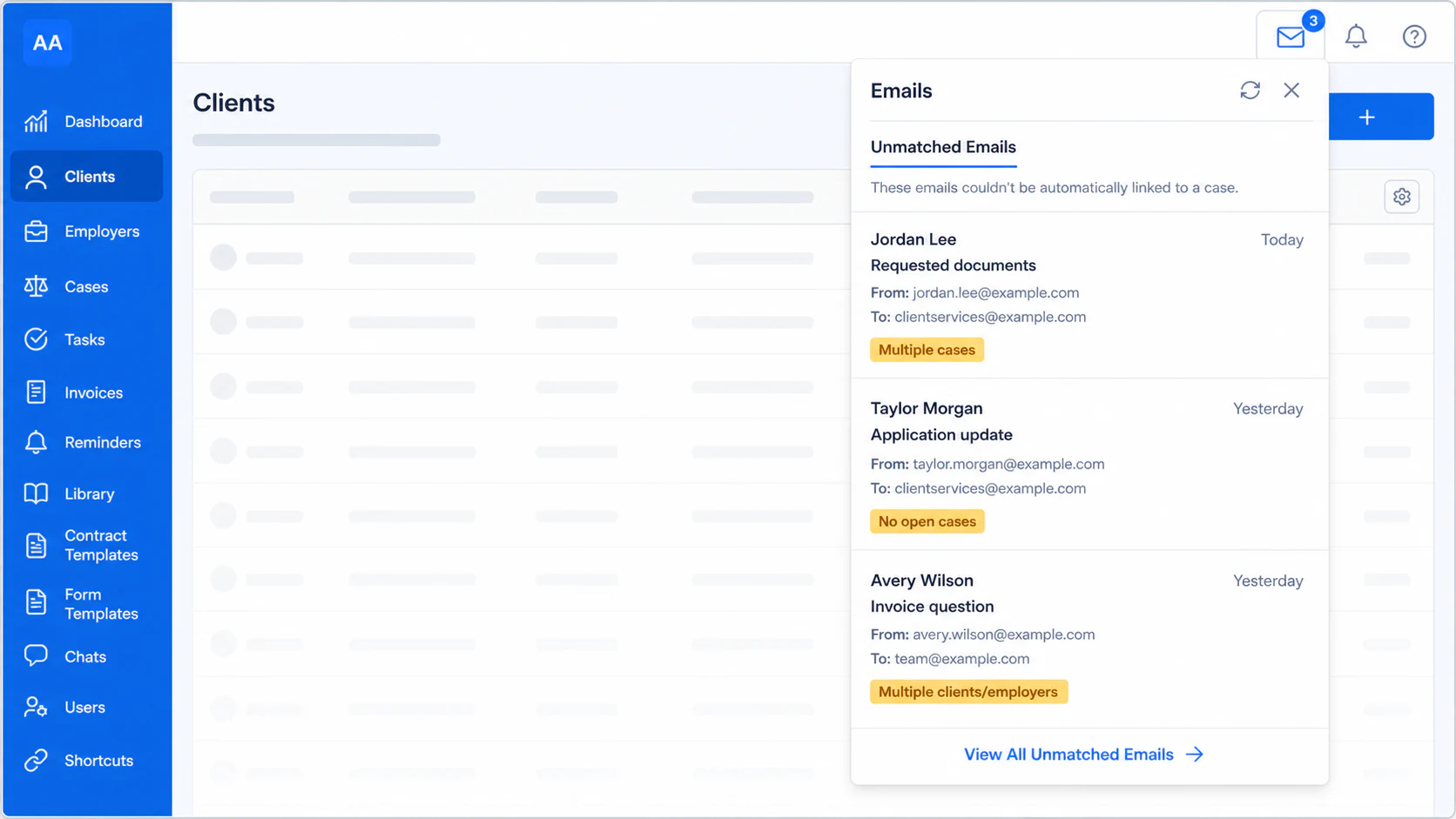
Connect the mailbox your practice actually uses. Confirm how sent messages, replies and attachments are stored, then test what happens when the system cannot confidently choose the correct case.
Run one realistic trial
- 1
Create one representative client and two separate immigration matters.
- 2
Add a material call note, supporting documents, a task and a reminder.
- 3
Assign a supported form and a client agreement to the correct case.
- 4
Connect the mailbox your practice actually uses and follow one email conversation.
- 5
Create an invoice and confirm where the financial history is visible.
- 6
Ask a second user to complete their normal work with the permissions they would have.
- 7
Export the information you would need if the practice later changed systems.
Treat unsupported claims as a warning
Ask the provider to show the current product behaviour, security evidence, export process and support route. If an important claim cannot be demonstrated or documented, record it as unverified rather than giving it a pass.
Test AdviserAide against your real workflow
Use a representative client and case during your demonstration, then decide based on the work your team completed.
Book a demoThis guide is a software-evaluation framework, not legal or professional-compliance advice. Product functionality and official requirements can change; verify the linked documentation during your evaluation.