Gmail and Outlook Integration for Immigration Case Files
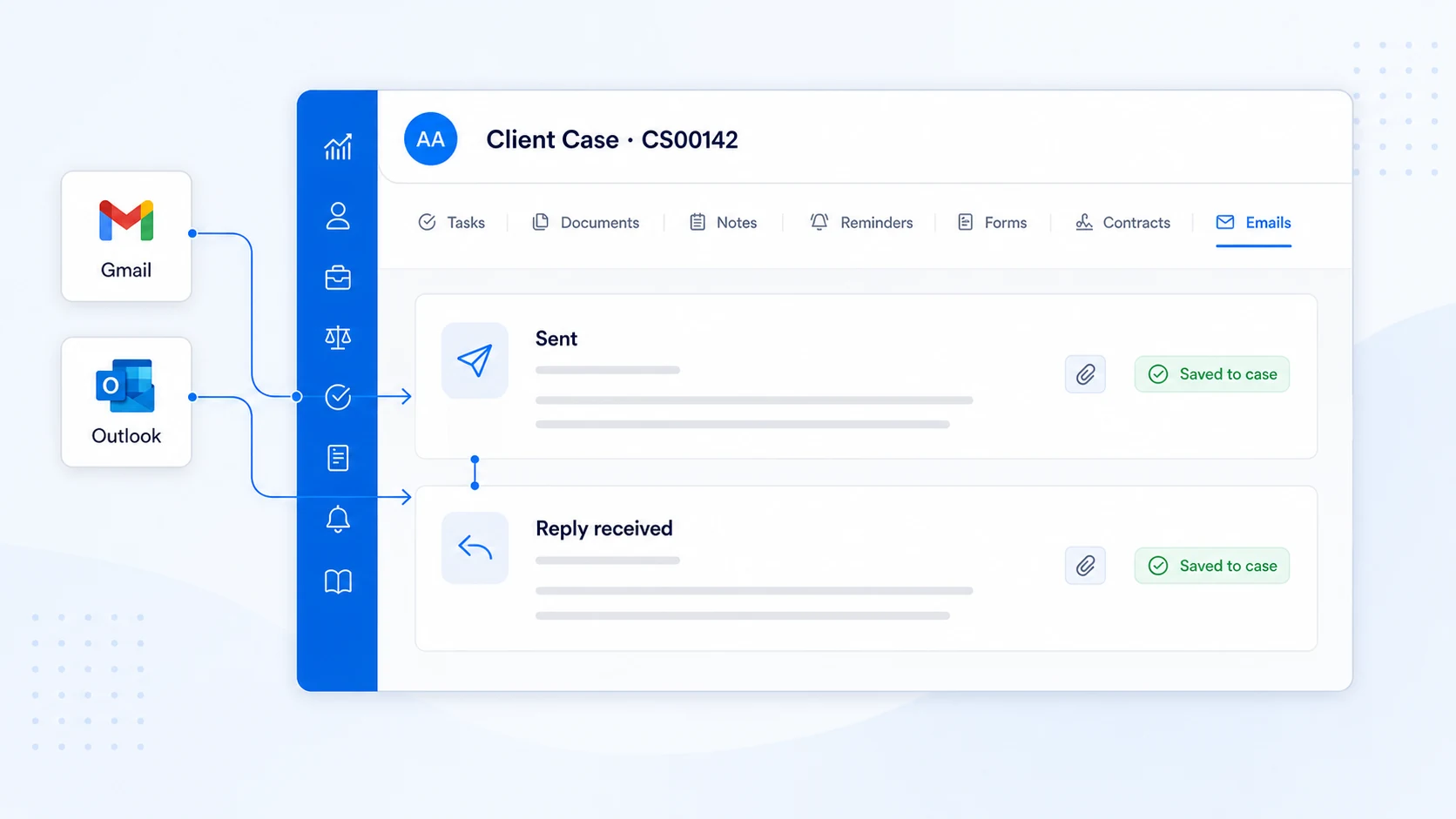
Connect Gmail or Outlook, send from your normal mailbox and keep relevant messages and attachments with the correct immigration case.
What it does
AdviserAide connects Gmail and Outlook so immigration professionals can continue using their normal mailbox while keeping relevant messages with the case. Emails that cannot be matched confidently wait in Unmatched Emails for a person to review and link.
What this helps your practice do
- Send from a connected Gmail or Outlook account
- Keep sent messages, replies and attachments with the case
- Control which team members can use a shared connected account
- Review uncertain messages before linking them to a client and case
A practical workflow from the AdviserAide Help Centre
Connect the mailbox
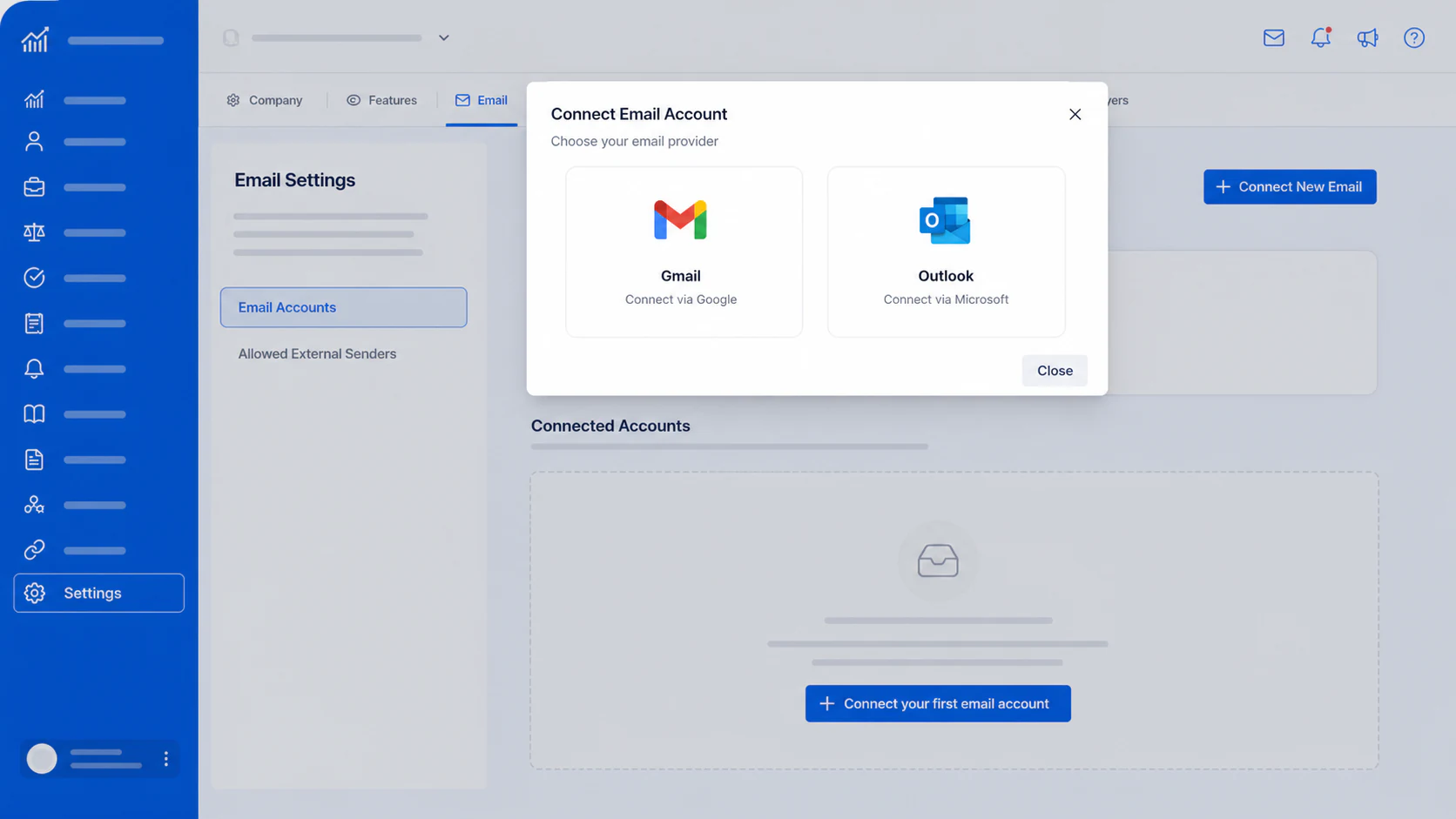
Open Email Accounts, choose Gmail or Outlook and sign in with the mailbox your practice uses.
Send from the case
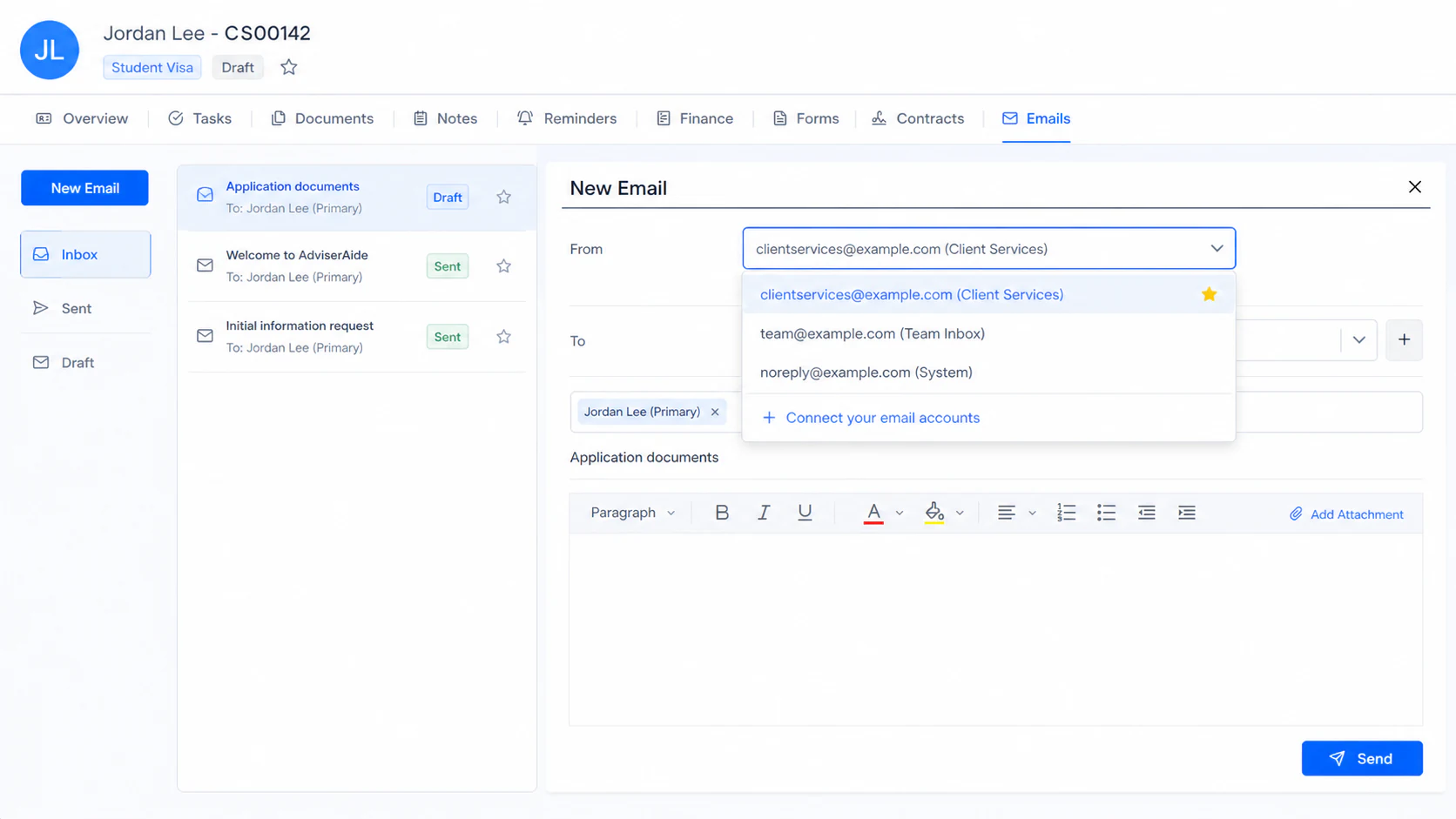
Choose the connected account in the From field and send the message while working from the relevant case.
Review exceptions
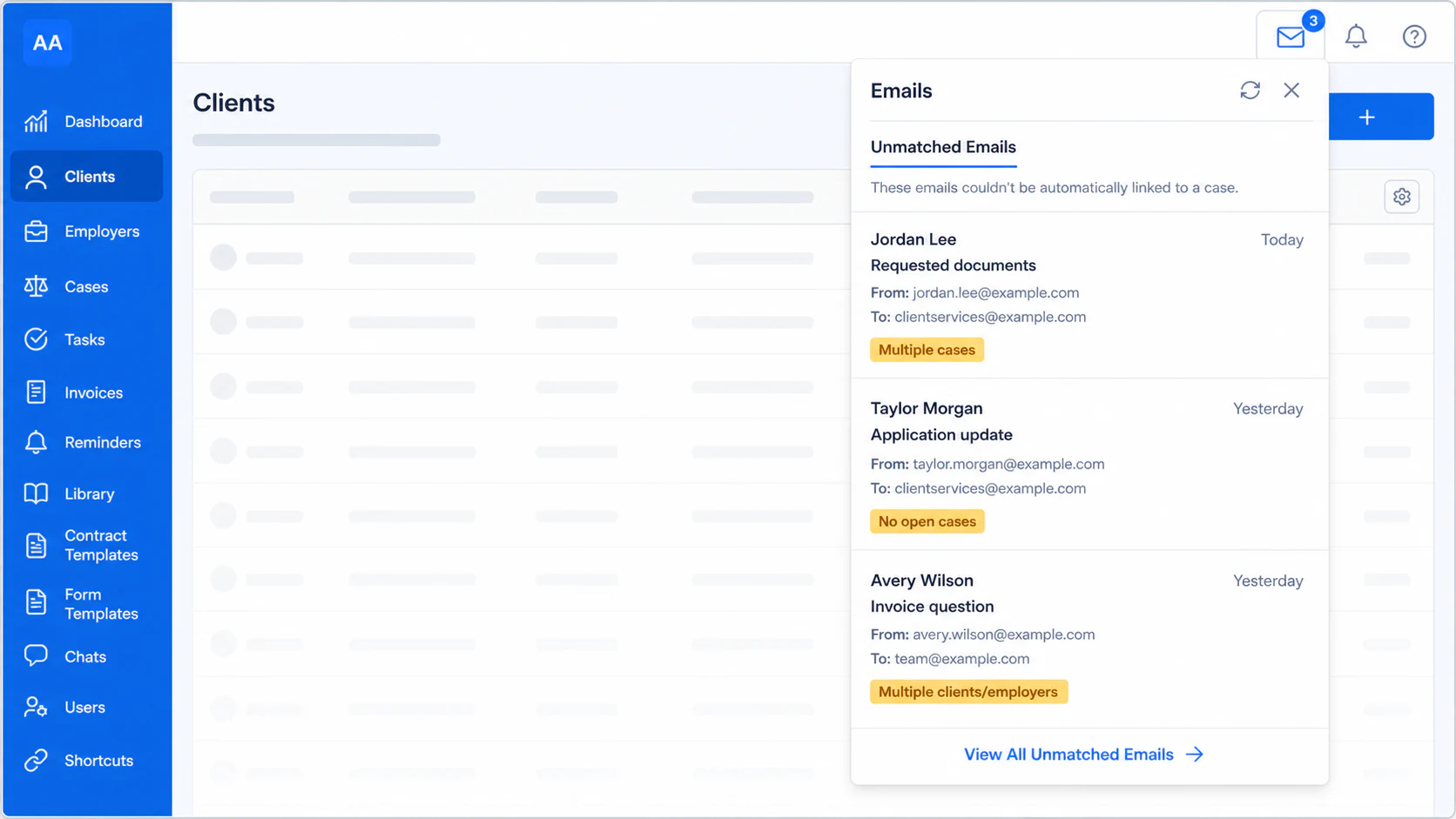
Open Unmatched Emails when a message needs a person to choose the correct client, employer or case.
Connect Gmail or Outlook
Email Accounts lets an authorised user choose the provider, enter the account details and complete the provider sign-in. After connection, the account settings show who can use it and whether the connection is working.
- Choose Gmail or Outlook
- Set the display name used when sending
- Share the connected account only with the users who need it
Choose the connected mailbox when sending
The case email editor includes the connected accounts available to the user. The message is sent from the selected mailbox while the AdviserAide case retains the relevant email record.
- Keep using the address clients already recognise
- Compose the message from the correct case
- Keep replies and attachments visible with the matter
Uncertain messages wait for review
AdviserAide does not force an uncertain incoming email into the wrong file. The Unmatched Emails panel shows messages that need attention and explains why they were not matched automatically.
- Open the email menu to see unmatched messages
- Choose the correct client or employer and case
- Link the email only after the destination is confirmed
Read the detailed product guides
These pages are based on the current AdviserAide Help Centre. Use the documentation for complete setup instructions and detailed behaviour.
See the workflow with your own process
Book a demonstration or request a trial account to test how this feature fits the way your immigration practice works.