Back to Release Notes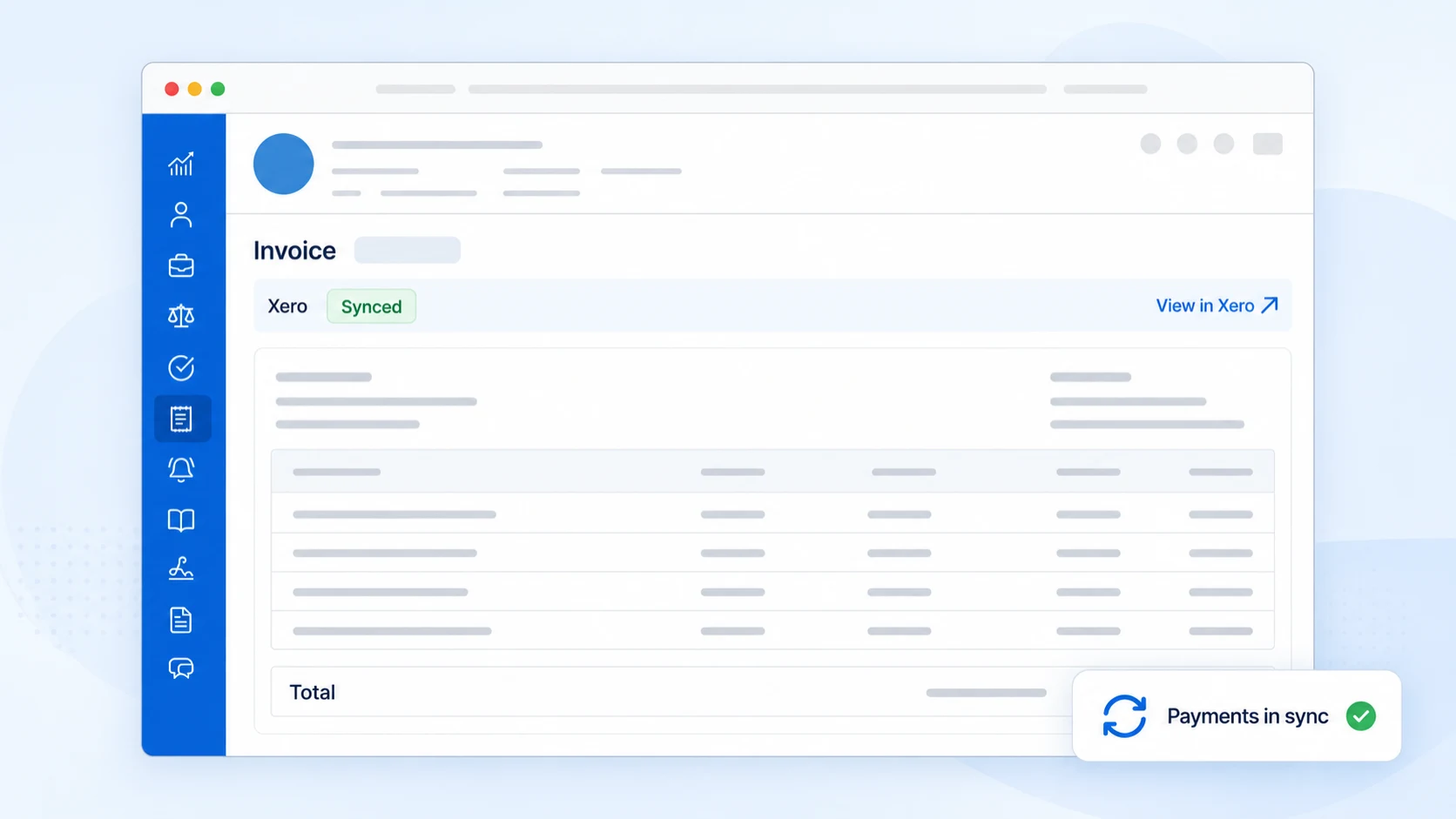
Introducing Xero integration
Connect Xero and your approved invoices, payments, credit notes and refunds sync automatically.
8 November 20262 min read
Connect Xero, and your approved invoices, payments and refunds are sent to Xero automatically. No more typing everything in twice.
Connect Xero
- Open Settings and select Integrations.
- Select Connect to Xero and sign in with your Xero login.
- Choose the Xero organisation you invoice from.
- Choose your Sales account and Payment account, then select Save accounts.
- Check the suggested tax rate matches, then select Save tax rates.
Once you are connected
- Invoices go to Xero by themselves. Select Send to Xero, or they send within 30 minutes of approving them. Later edits sync too. See how it works
- Payments stay in step both ways. Payments recorded in AdviserAide appear in Xero, and payments recorded in Xero appear on the invoice. See how it works
- Credit notes and refunds follow. Credits, waive-offs and refunds become credit notes in Xero, applied to the right invoice. See how it works
- See what synced at a glance. Each invoice shows its Xero status and a View in Xero link, and anything that needs your attention is listed in Settings, then Integrations. See how it works
Draft invoices never sync, and pausing or disconnecting never deletes anything in either system. See how it works
Even better with Stripe
Connect Stripe online payments as well and your invoicing runs itself.
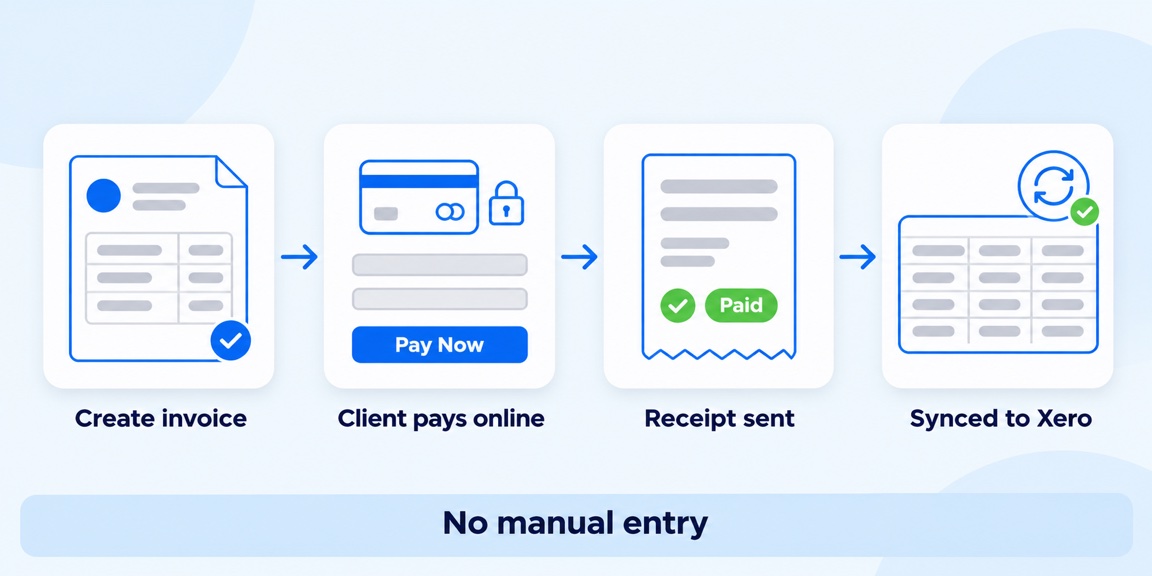
Approve an invoice and your client pays online by card. AdviserAide marks the invoice as paid and emails the receipt, and both the invoice and the payment go to Xero automatically. Nobody has to enter the payment by hand.
Check that Send payments to Xero and Automatically send payment receipt are turned on. See how it works