Get paid online with Stripe
Connect Stripe and your clients can pay invoices and advance payments by card from a Pay Now link.
Getting paid usually means sending bank details, waiting for a transfer to arrive, and then matching it to the right invoice by hand.
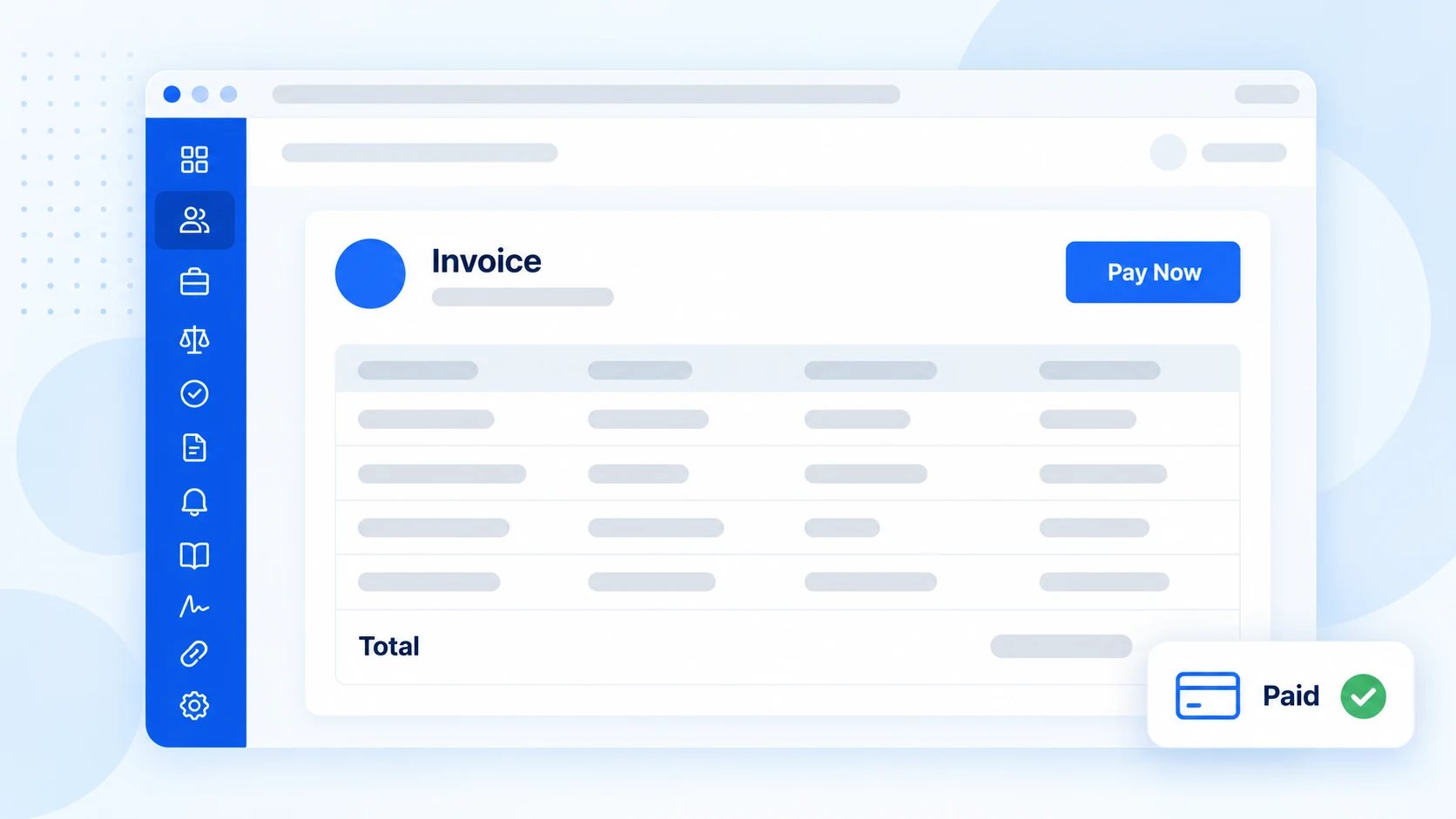
Now you can connect your own Stripe account and let clients pay invoices and advance payments online by card. Each invoice email includes a Pay now online button. Your client checks the invoice in ClientHub, selects Pay Now and pays on Stripe's secure payment page, with a card issued in your country or overseas. AdviserAide records the payment on the invoice for you, and the money goes straight to your Stripe account.
Connect Stripe
- Open Settings and select Integrations.
- Select Online Payments.
- Select Connect Stripe account and follow the steps in Stripe.
- Turn on Set as default payment gateway if you want Stripe selected on new invoices and advance payments.
You need to be an administrator to connect Stripe. See how to connect Stripe
Card fees
Where your country allows it, you can pass card processing fees on to your clients. Turn on Pass card processing fees on to clients and set separate rates for domestic and international cards. Your client sees the fee as a separate line before they pay, and only the amount owing is recorded against the invoice.
To cover the fee yourself on one invoice or advance payment, tick the option not to charge the online payment fee when you create or edit it.
Pay Now in reminders
Automatic invoice reminders also include the Pay now online button while Stripe is selected on the invoice and money is still owing.