Digital Client Agreements for Immigration Practices
Import your existing Word agreement, add reusable placeholders, assign it to a case and send a secure link for online signing.
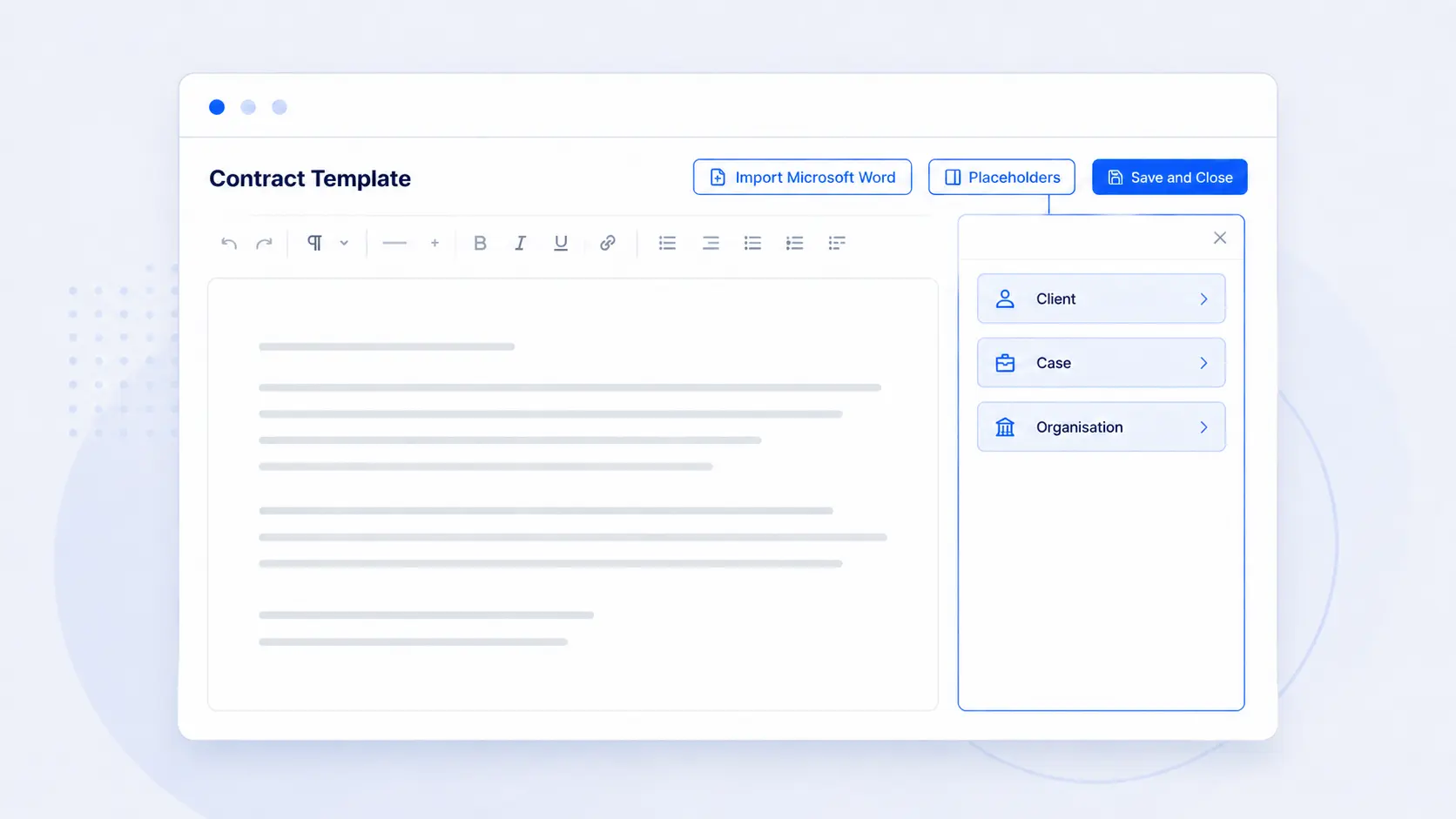
What it does
AdviserAide lets an immigration practice turn its existing Microsoft Word agreement into a reusable template. Add client, case, contact and organisation placeholders, assign the agreement to a case, review the generated document and send a secure signing link.
What this helps your practice do
- Import the Microsoft Word agreement your organisation already uses
- Insert reusable client, case, contact and organisation placeholders
- Review and edit the generated agreement before sharing it
- Keep the signed PDF and contract activity with the case
A practical workflow from the AdviserAide Help Centre
Prepare the template
Create a contract template, import the Word document and add the placeholders and signature fields required by your practice.
Assign it to a case
Choose the template from the Contracts tab and review the client, contact and case information placed into the agreement.
Send for signing
Generate a secure shareable link, send it to the client and retain the signed PDF with the case.
Build from your existing agreement
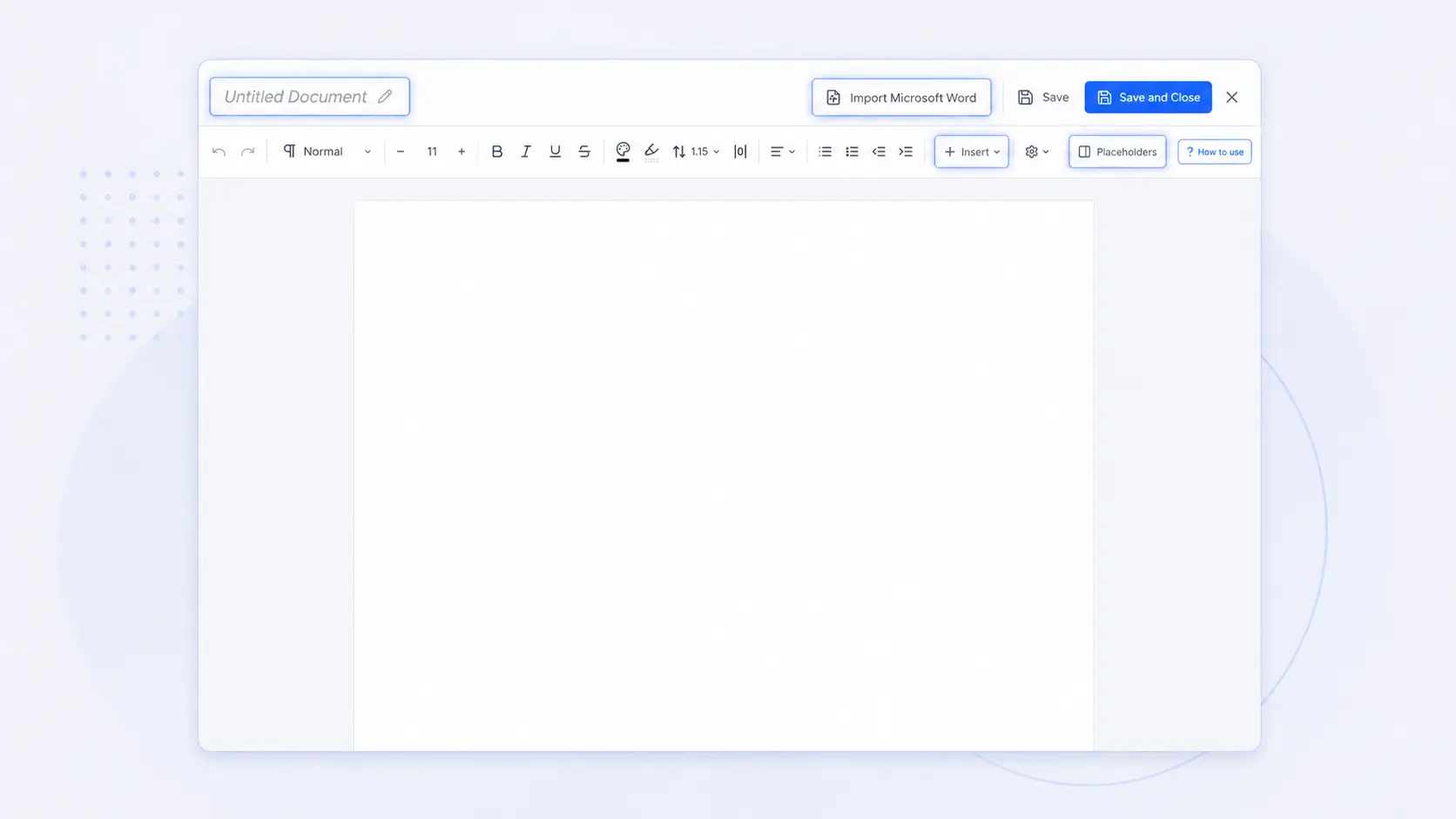
The contract editor can import a Microsoft Word document so your organisation does not need to recreate its approved agreement from a blank page. Review the formatting, then add the reusable fields needed for future cases.
- Import an existing Word agreement
- Add images, page breaks and signature fields
- Save the finished document as a reusable template
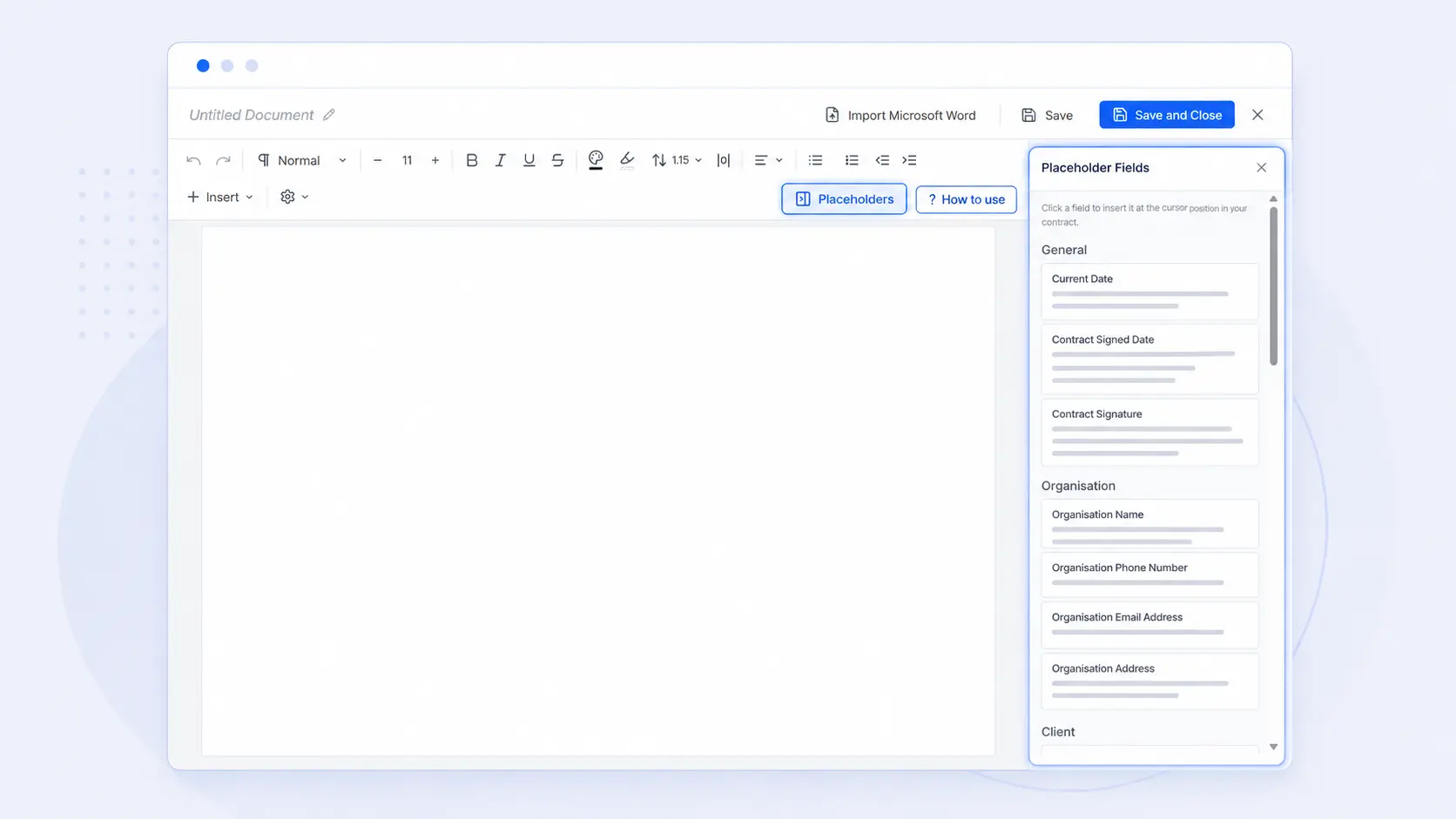
Insert client, case and contact information
Placeholder fields insert information already held in AdviserAide. Contact placeholders can also follow the order of contacts attached to the case, making one template reusable across different matters.
- Use client, case and organisation placeholders
- Insert contact details using the case contact order
- Review the generated values before sending
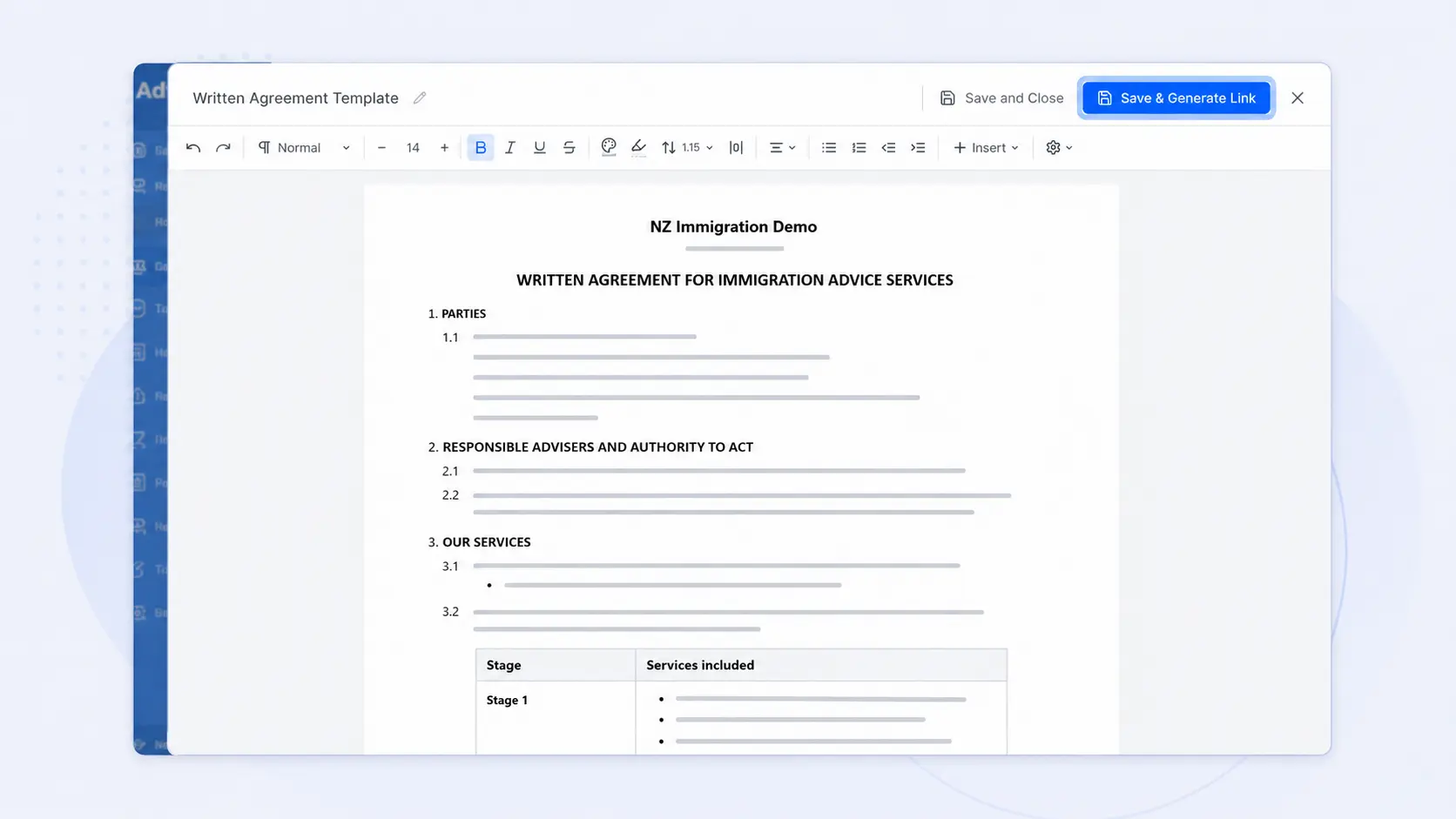
Review the agreement before generating the link
After assigning a template to the case, the agreement opens for review. Make any matter-specific edits, save the contract and generate the secure link only when the document is ready for the client.
- Choose a template from the case Contracts tab
- Review and edit the case-specific agreement
- Generate the client link and retain the completed PDF
Read the detailed product guides
These pages are based on the current AdviserAide Help Centre. Use the documentation for complete setup instructions and detailed behaviour.
See the workflow with your own process
Book a demonstration or request a trial account to test how this feature fits the way your immigration practice works.