Back to Release Notes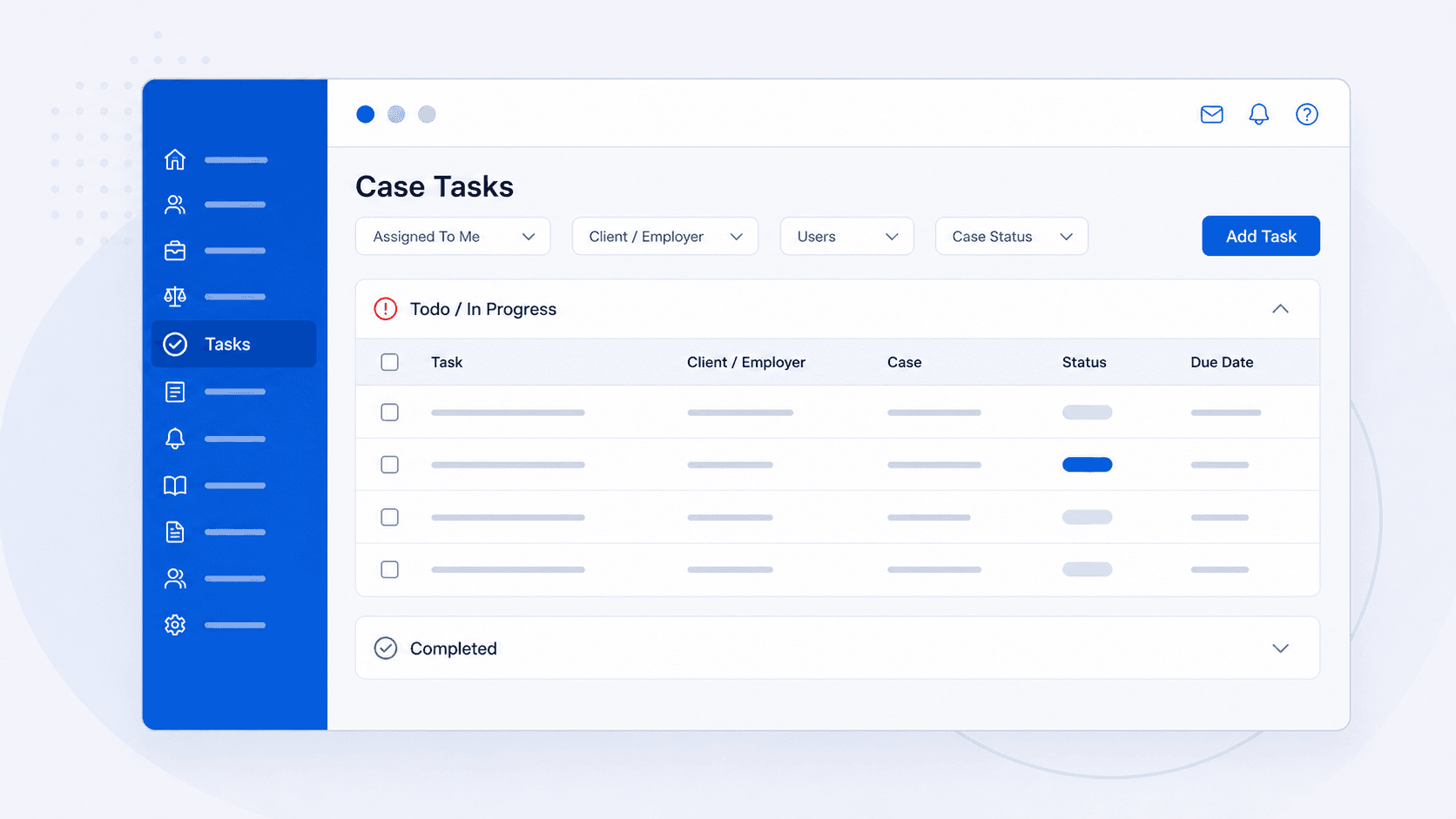
Case tasks in one place
Use the Tasks menu to review, filter, and complete case tasks without opening each case first.
13 March 20262 min read
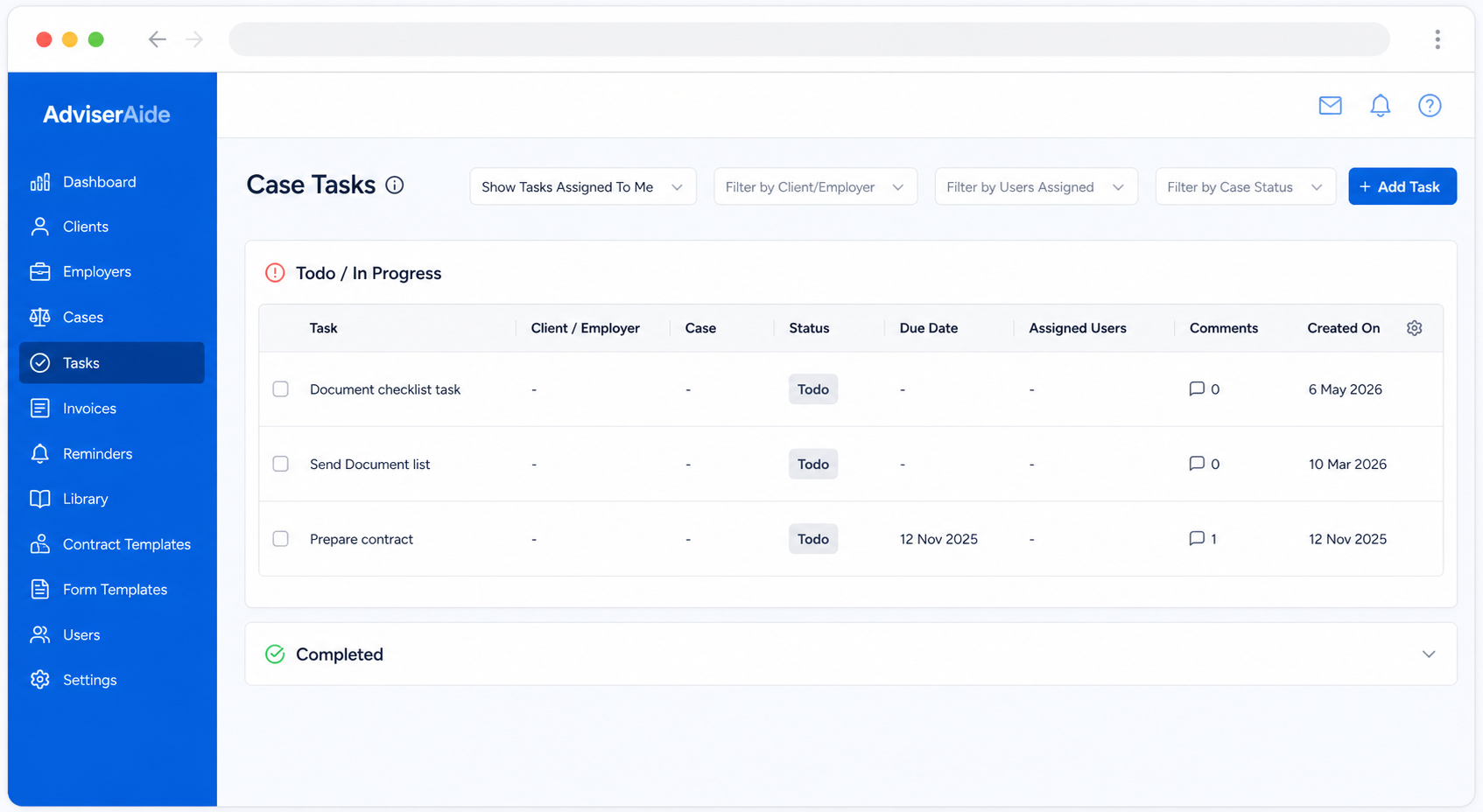
The Tasks menu now gives you one place to review case tasks across the cases you can access. Instead of opening each case first, you can work through tasks from a single list.
The page separates active tasks from completed tasks, so it is easier to focus on what still needs attention.
What you can do
- Open Tasks from the left menu.
- Review Todo / In Progress tasks first.
- Open the Completed section when you need to check finished work.
- Filter tasks by client or employer, assigned user, and case status.
- Click a task to update its details, due date, assigned users, or comments.
- Tick a task to mark it as completed.
- Add a task from the task list when the Add Task button is available.
How to use it
- Click Tasks in the left menu.
- Use the filters at the top to narrow the list.
- Work through the Todo / In Progress section.
- Tick a task when it is done.
- Click a task row if you need to review or update the details.
- Open Completed if you need to review completed tasks.
Good to know
- Some filters and actions depend on your permissions.
- If you manage tasks for the team, you may also be able to switch between your assigned tasks and all tasks.
- You can click the client, employer, or case details from the list to open the related record.
- You can use the column settings icon and resize columns to make the list easier to scan.