Case activity notifications
Get real-time alerts when someone mentions you, assigns work to you, or important case activity happens.
You can now get real-time notifications inside AdviserAide when important activity needs your attention. Notifications help you spot mentions, assigned work, signed contracts, submitted forms, and important case activity without needing to keep checking different screens.
You will see notifications under the bell icon in the top-right corner of AdviserAide. If there is something new for you, the bell shows a number so you can quickly see that something needs your attention.
What is included
AdviserAide can notify you when:
- Someone mentions you in a case note, task description, or task comment.
- A case is assigned to you.
- A task is assigned to you.
- A case you are assigned to changes status.
- A new email is received and matched to a case you are assigned to.
- A client signs a contract for a case you are assigned to.
- A client submits a form for a case you are assigned to.
Check your notifications
- Look for the bell icon in the top-right corner of AdviserAide.
- Click the bell to open your notification panel.
- Open the Notifications tab.
- Click any notification to go to the related case, task, email, note, form, or contract.
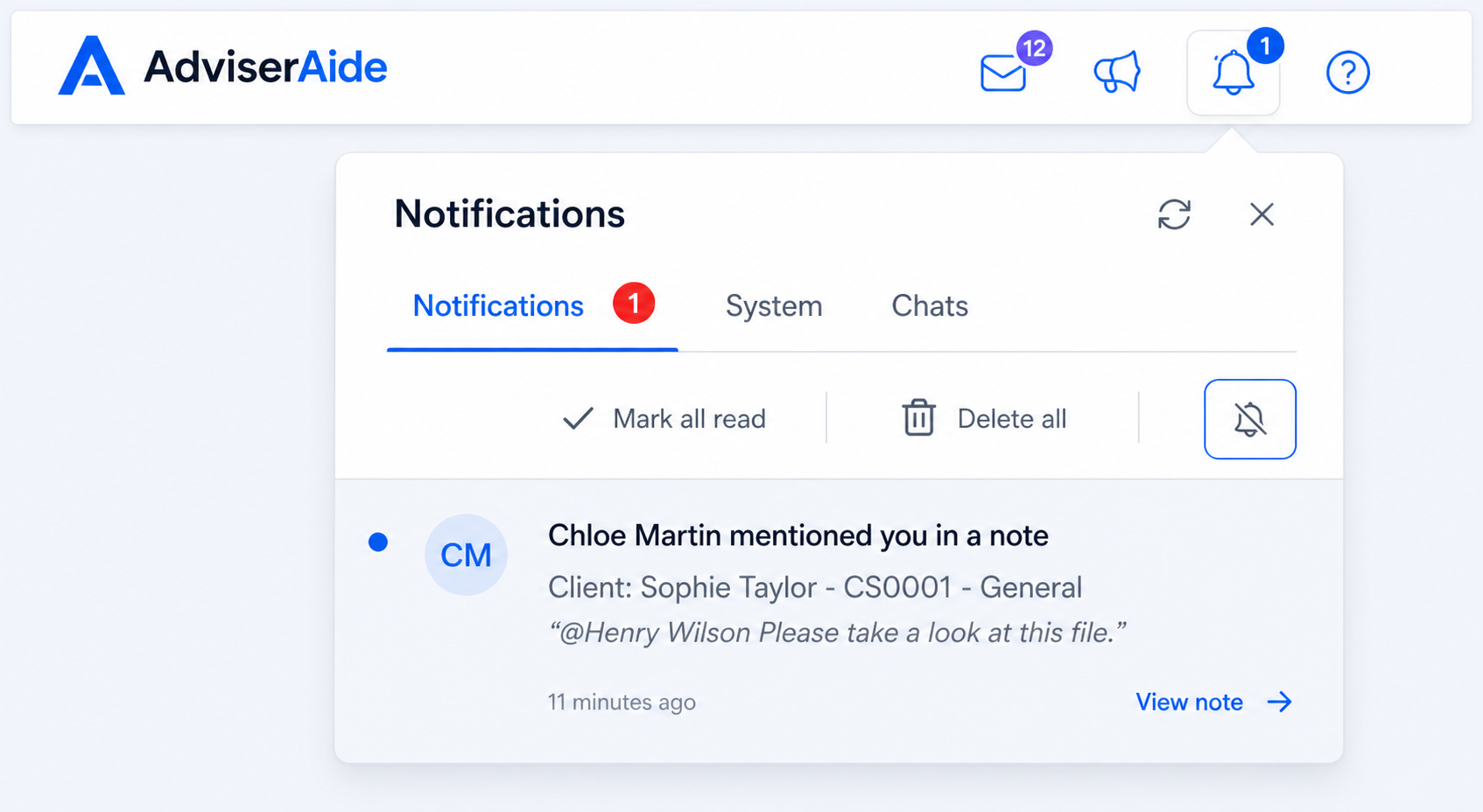
New notifications can also appear as a small popup in the top-right corner while you are using AdviserAide. Click the popup to open the related item, or close it and come back to it later from the bell.
Mention a team member
You can mention another team member when you need their attention. Mentions work in case notes, task descriptions, and task comments.
- Open a case note, task description, or task comment.
- Type
@. - Start typing the team member's name.
- Select the right person from the list that appears.
- Save the note, task, or comment.
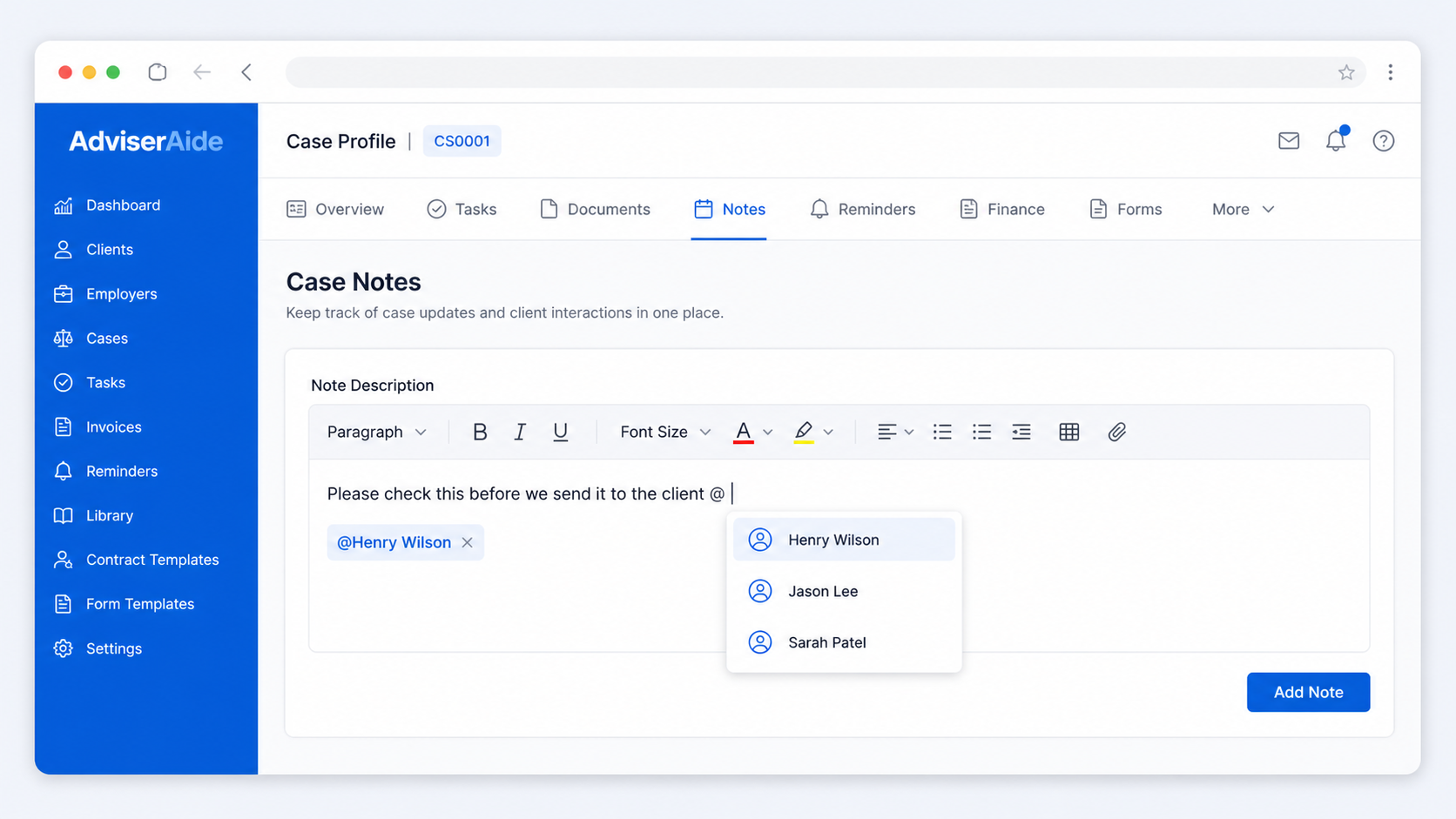
The person you mention will receive a notification, as long as that notification type is turned on for them.
Manage what you receive
Each user can choose which notifications they want to receive.
- Click the bell icon in the top-right corner.
- Open the Notifications tab.
- Click the notification preferences icon in the top-right corner of the panel.
- Turn notification types on or off.
- Close the popup when you are finished.
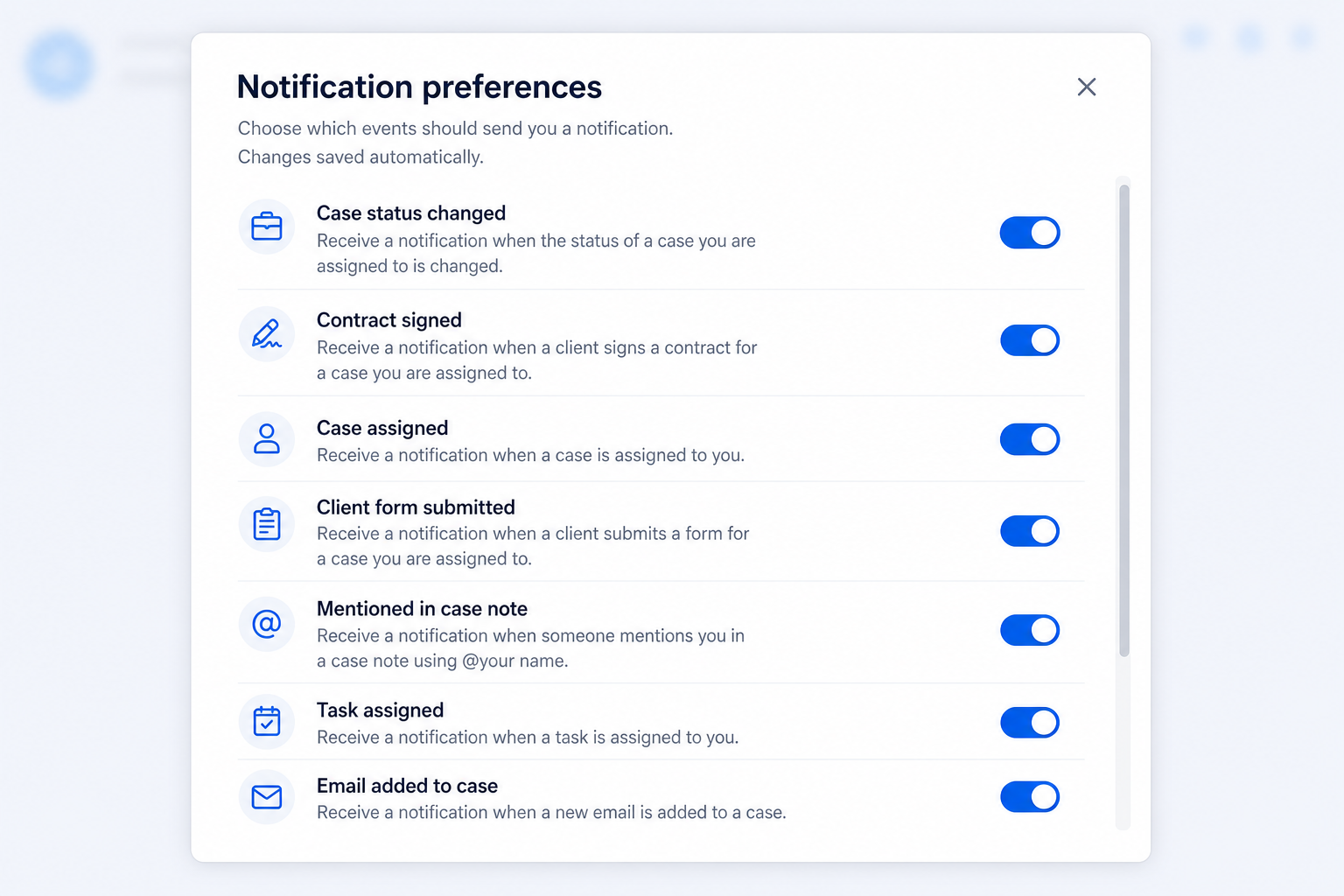
Your changes save automatically.
A few helpful details
- You may not receive a notification for an action you completed yourself.
- Notification preferences are personal to each user.
- If you turn off a notification type, AdviserAide will stop sending that type to you.
- You can use Mark all read to clear unread notifications without deleting them.
- You can use Delete all to permanently remove notifications from your list.
If you do not see the notification bell yet, this feature may not be enabled for your workspace.