Introducing PDF Tools built into AdviserAide
Merge, compress, split, reorganise and add notes to PDF files from Case Documents or Library.
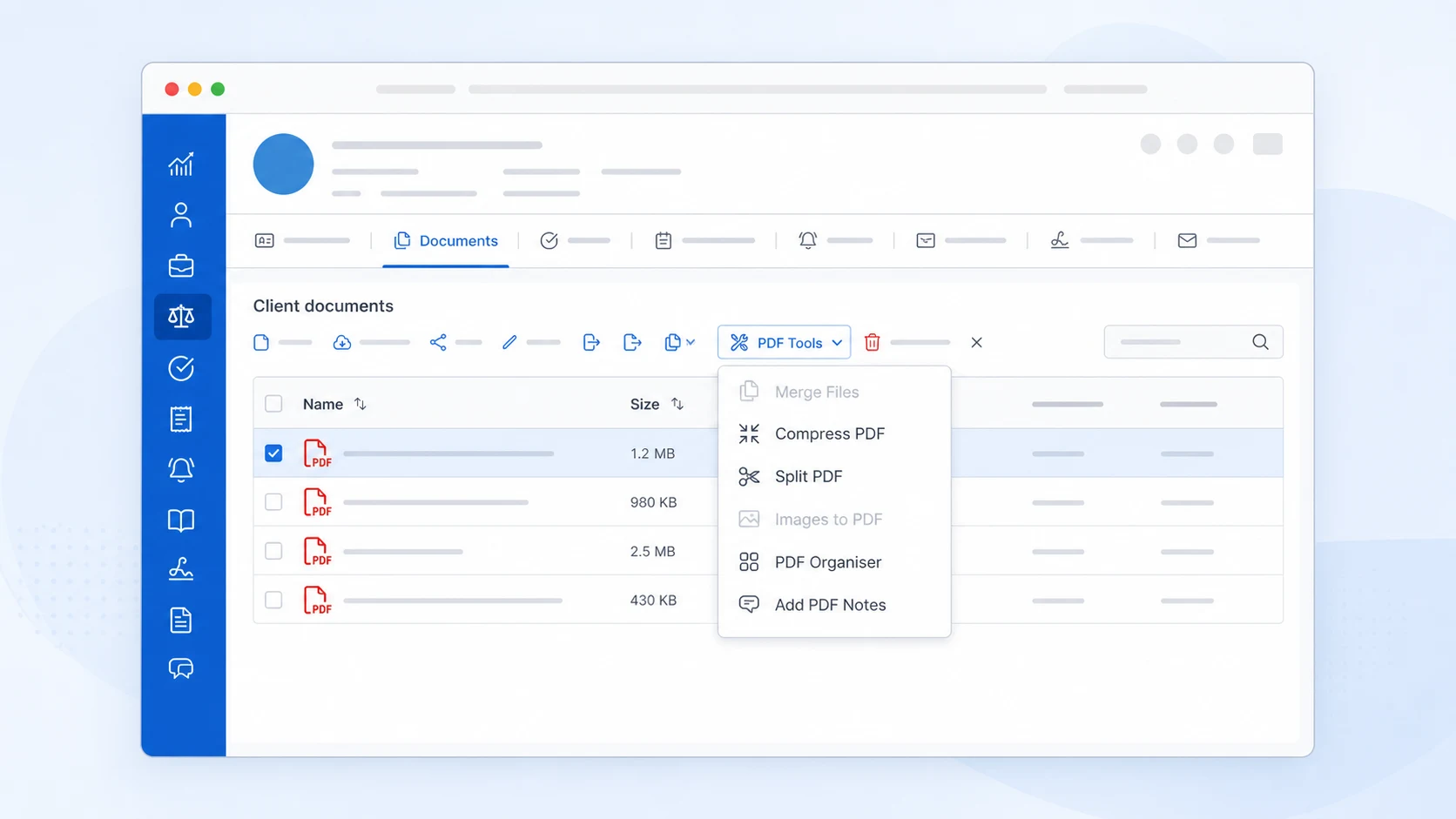
Preparing documents for an immigration application can mean moving between different websites or programs to combine files, reduce their size, remove pages or turn scans into one PDF.
AdviserAide now brings those jobs together under PDF Tools. You can prepare files from Case Documents or Library, without downloading them and uploading them to another service first.
Your original file stays as it is. AdviserAide saves the result as a new copy, so you can prepare the version you need while keeping the original document.
Choose what you need to do
- Merge PDF files to combine several PDF files into one document.
- Compress a PDF to make a PDF smaller for uploading or sending.
- Split a PDF to create separate PDF files from selected pages.
- Images to PDF to turn JPG or PNG images into one PDF.
- PDF Organiser to reorder, rotate, remove, extract or insert pages.
- Add PDF Notes to add explanatory notes directly to PDF pages.
How to open PDF Tools
- Open a case and select Documents, or open Library.
- Select the PDF files or images you want to work with.
- Select PDF Tools, then choose the tool you need.
You can also open a PDF and select PDF Tools beside Download.
The options available depend on what you select. For example, select at least two PDFs to merge them, one PDF to compress or organise it, or JPG and PNG images to create a PDF.
See the complete PDF Tools guide, including step-by-step instructions and troubleshooting.
Still rolling out
If your workspace does not show PDF Tools yet, the update may still be rolling out to all users.