Back to Release Notes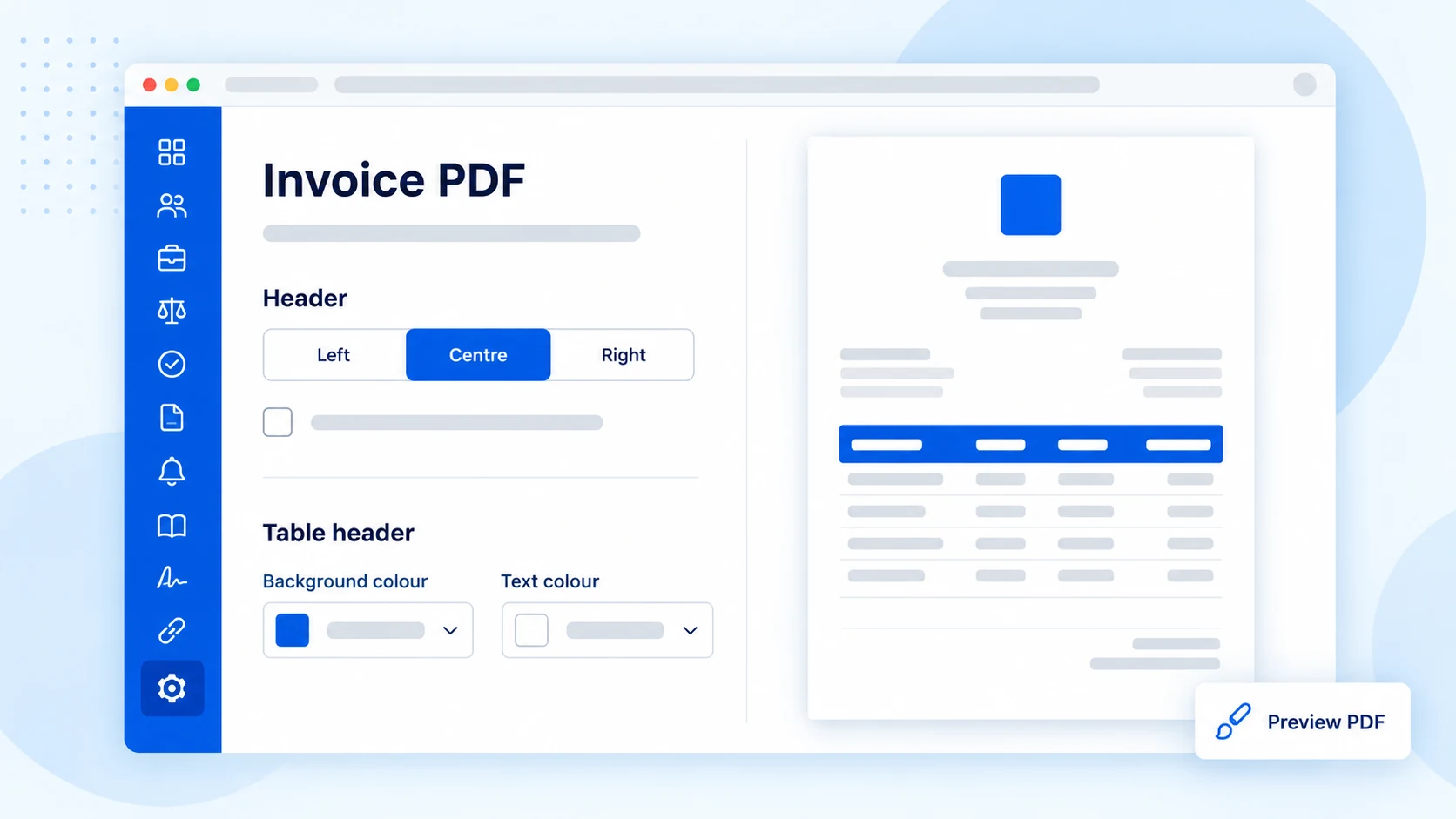
Match your invoice PDFs to your brand
Choose where your logo sits and set the colours of the line items table on your invoice PDFs.
8 November 20261 min read
Every invoice PDF placed your logo on the left and used a grey header on the line items table, whatever your brand looked like.
Now administrators can choose how invoice PDFs look. Place your logo on the left, in the centre or on the right, show only your logo in the header, and choose the background and text colours for the header row of the line items table. Your choices apply to invoices, payment receipts, credit notes and advance payment requests.
How to set it
- Open Settings, select Invoice, then Invoice PDF.
- Under Header, choose Left, Centre or Right for your logo.
- Tick Hide company name when a logo is uploaded if you want only your logo in the header. Your company name still appears in the From details.
- Under Table header, choose a Background colour and a Text colour.
- Select Preview PDF to check a sample invoice.
Each change saves as soon as you make it. Select Reset to default to go back to the original layout.