Back to Release Notes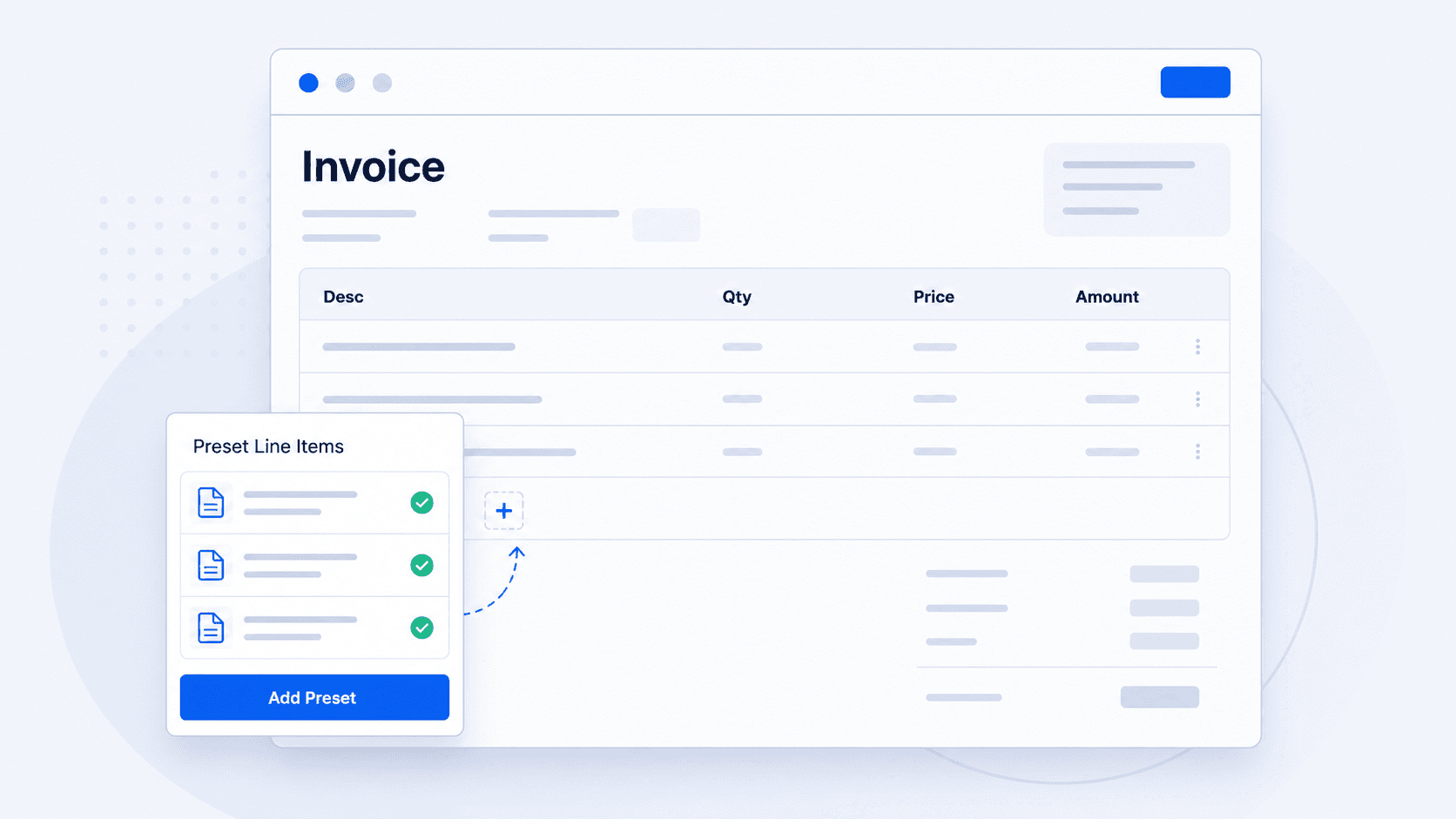
Reuse invoice items
Save common charges once, then add them to invoices or advance payments without retyping.
27 March 20262 min read
You can now save common invoice items and reuse them when preparing invoices or advance payments. This helps your team avoid typing the same descriptions, quantities, prices, and tax rates again and again.
It is useful for fixed fees, common services, repeat charges, and any invoice item your team uses often.
How to create saved invoice items
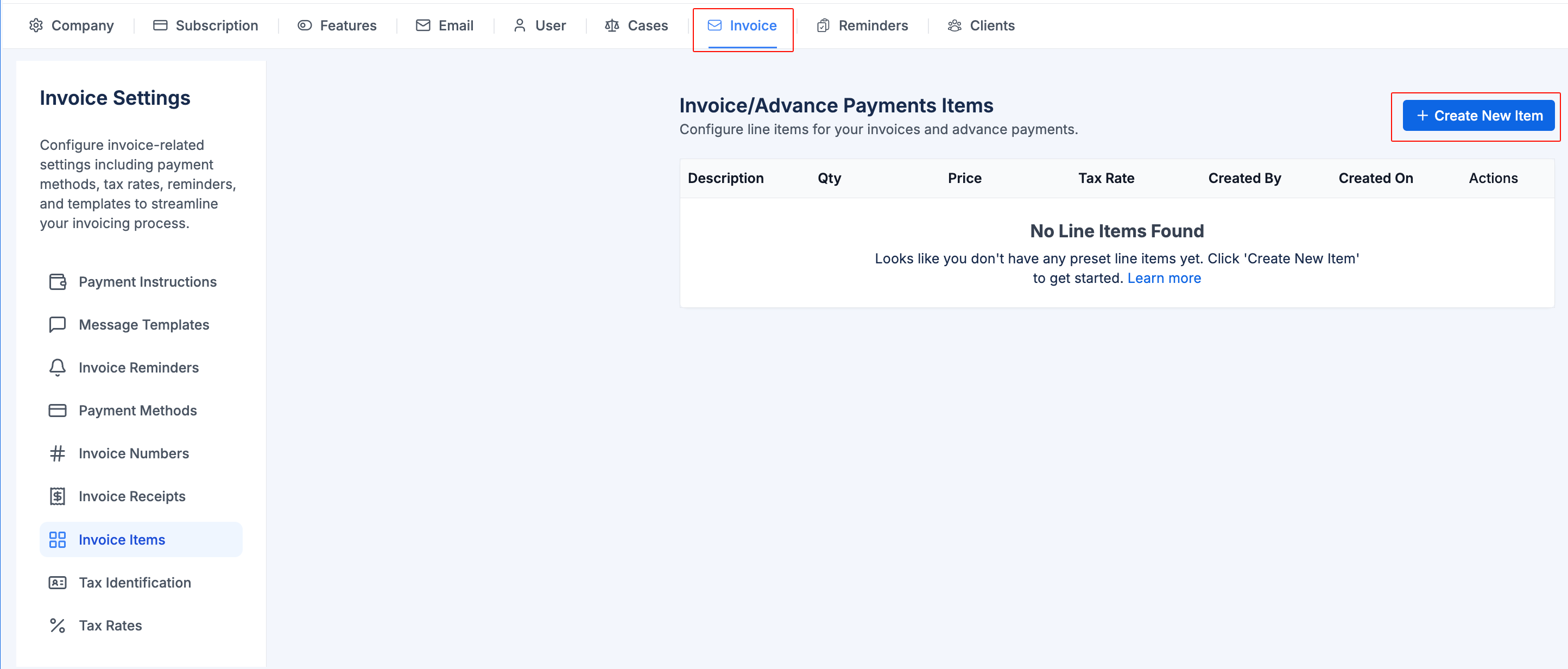
- Open Settings.
- Go to Invoice.
- Open Invoice Items.
- Click Create New Item.
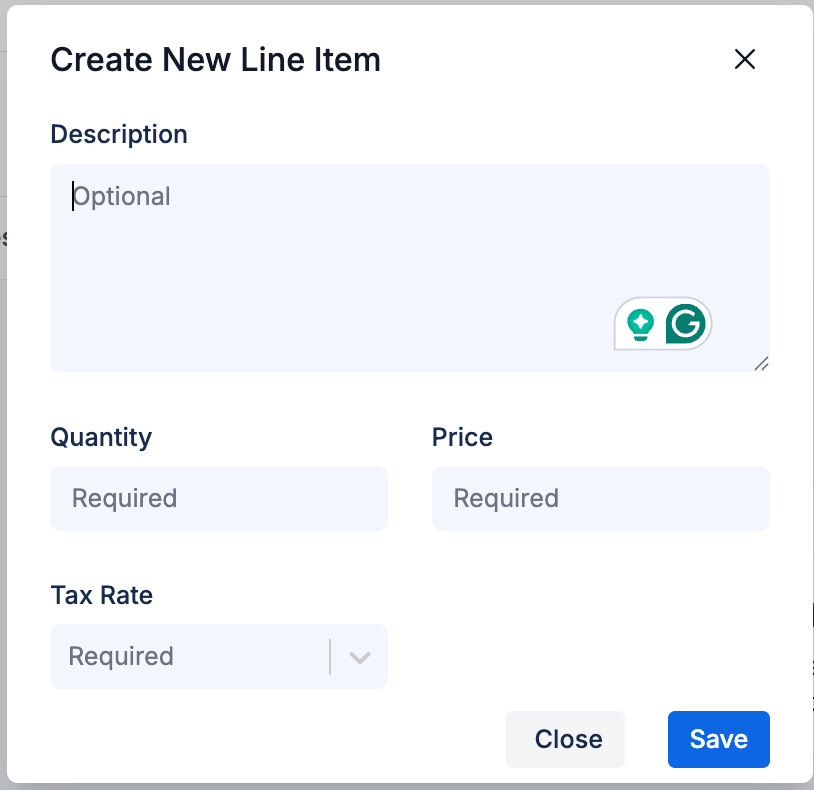
- Add the description, quantity, price, and tax rate.
- Click Save.
How to add saved items to an invoice
- Open an invoice or advance payment.
- Go to the Invoice Line Items area.
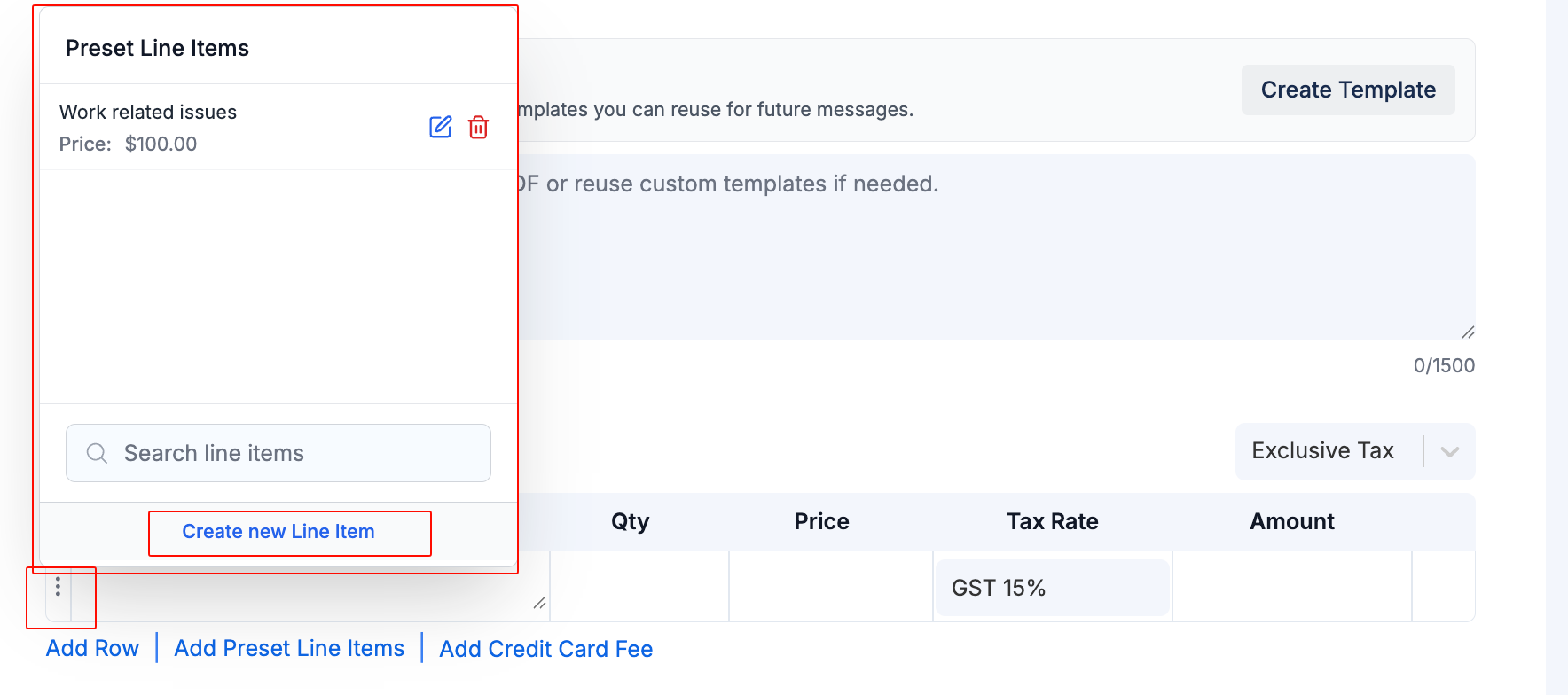
- Click Add Preset Line Items.
- Select one or more saved items.
- Click Add Selected Items.
- Review the description, quantity, price, tax rate, and amount before saving or sending.
You can also use the small menu beside an invoice row to fill that row from a saved item.
Good to know
- After a saved item is added, you can still edit the invoice row before saving or sending.
- Saved items are available for invoices and advance payments.
- You can edit or delete saved items from the preset item picker or from Invoice Items in settings.
- Check the invoice total before sending it to a client.