Back to Release Notes
Customise your list columns
Choose which details you see, move columns into the right order, and resize them to fit the way you work.
24 April 20262 min read
AdviserAide lists are now easier to shape around the way you work. You can choose which details you see, move columns into the order you prefer, and resize columns when you need more room.
This is especially helpful on busy list pages such as Clients, Cases, Tasks, Invoices, Forms, Reminders, and Users.
What you can do
- Choose which columns appear in a list.
- Drag columns into the order you prefer.
- Resize columns by dragging the line between column headings.
- Save your preferred setup for next time.
How to use it
- Open a supported list page, such as Cases, Clients, Tasks, or Invoices.
- Click the Columns settings icon at the far right of the column headings.
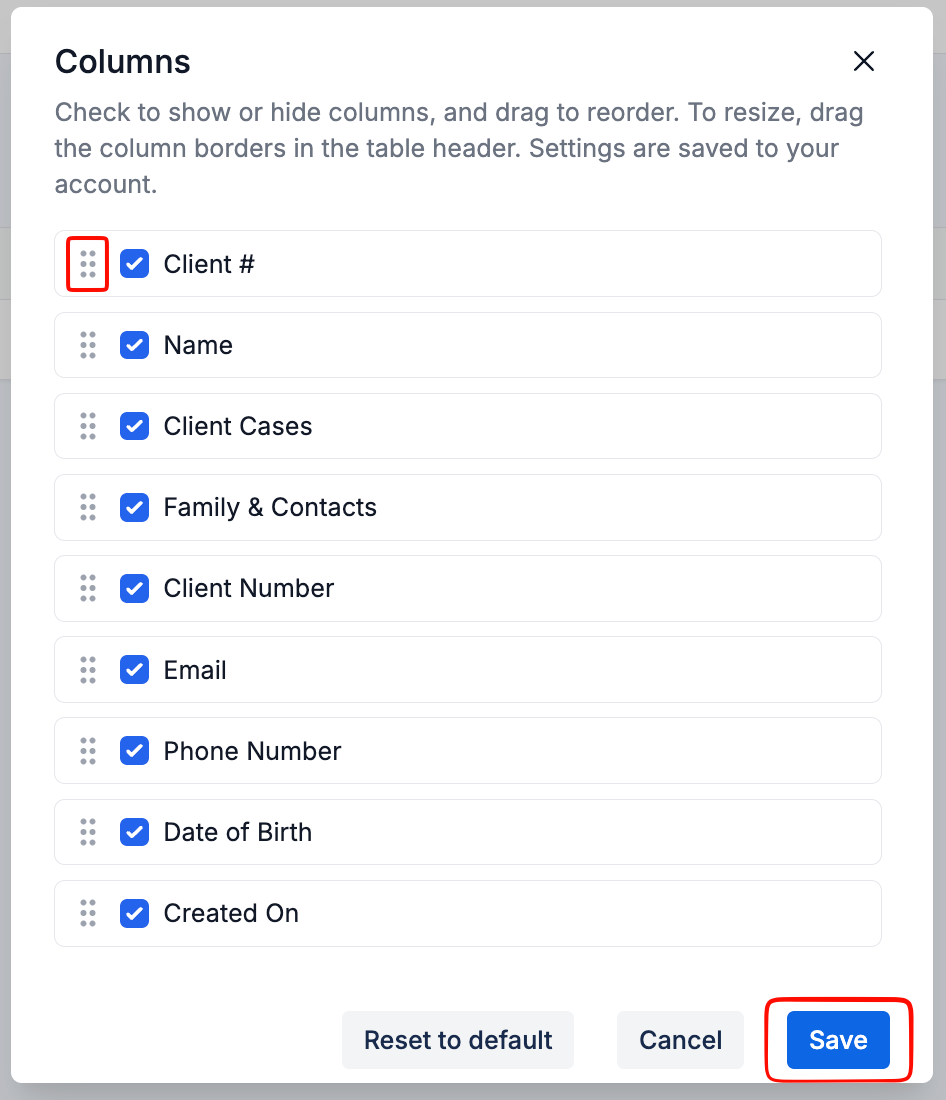
- Tick the details you want to show, and untick the details you do not need.
- Drag columns up or down in the Columns panel to change their order.
- Drag the line between column headings when you want to make a column wider or narrower.
- Click Save. AdviserAide will remember your list setup for next time.

Good to know
- Your settings are saved to your account.
- Each list can have its own setup, so your Clients list can be different from your Tasks list.
- If a page does not show the Columns settings icon yet, that list may not support custom columns yet.
- If your team follows the same process, agree on which details matter before hiding important columns.