Filter your client, case and employer lists by custom fields
Use Add filter to find clients, cases and employers by the custom fields your firm already tracks.
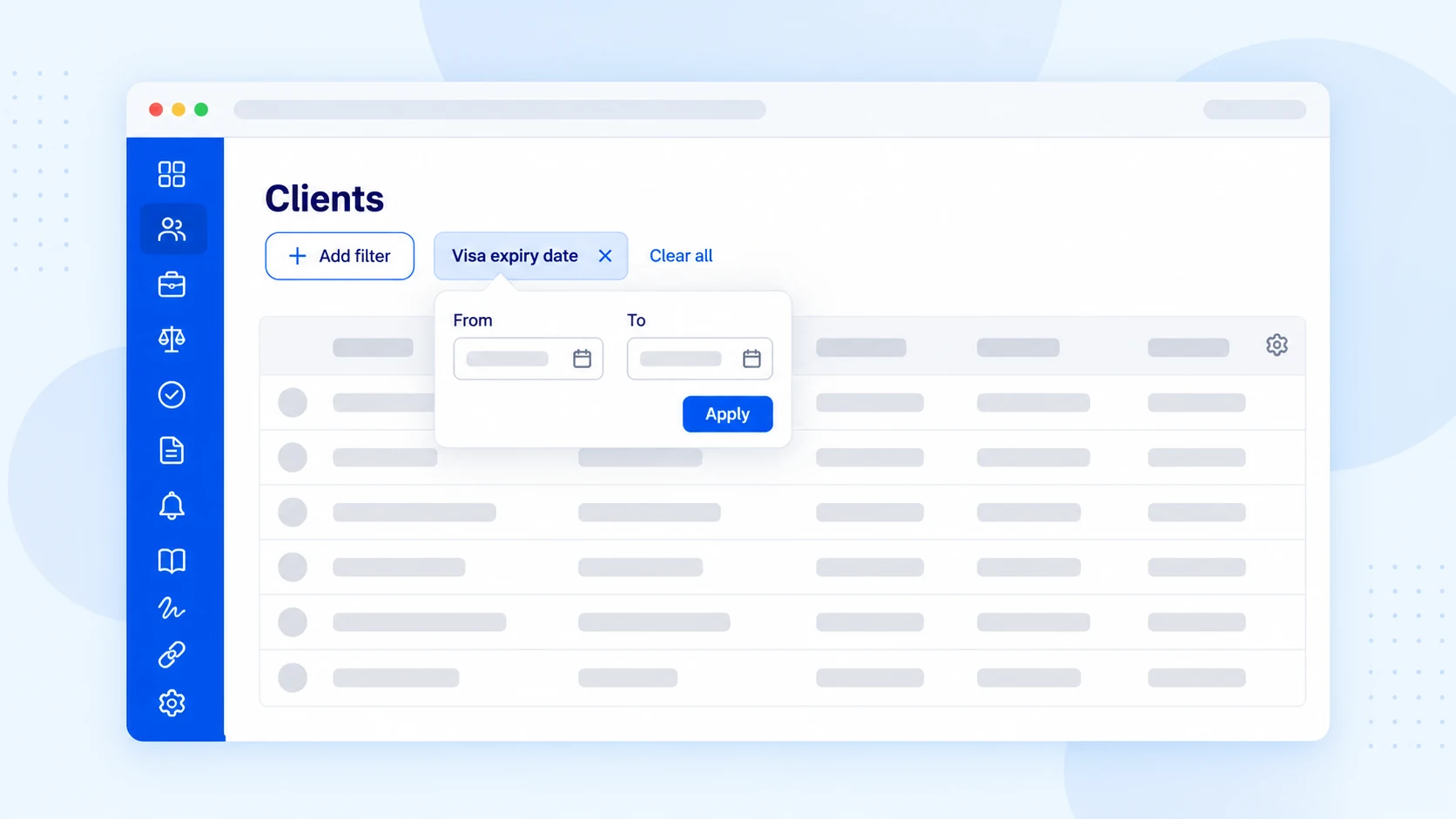
Custom fields hold the details your firm tracks, such as a visa expiry date or how a client found you, but you could not use them to narrow down a list. Finding every client with a particular value meant opening records one at a time.
Now the Clients, Cases and Employers lists can be filtered by your custom fields, and you can show custom fields as columns.
How to filter by a custom field
- Open the Clients, Cases or Employers list.
- Select Add filter and choose a custom field.
- Enter what you are looking for, then select Apply.
Each filter appears above the list. Select it to change the value, or remove it when you are done. Select Clear all to remove every filter.
How you filter depends on the type of field:
- Text fields match any record that contains the text you enter.
- Number and Decimal fields match values between a minimum and a maximum.
- Date and Date & Time fields match dates between a From and a To date.
- Dropdown and Checkbox fields match any of the options you select.
You can apply up to 5 custom field filters at once. Paragraph fields cannot be filtered, but they can be shown as a column.
How to show custom fields as columns
- Select the Columns settings icon at the far right of the column headings.
- Tick the custom fields you want to see, and drag them into the order you want.
- Select Save.
Your columns are saved to your account. If you do not see Add filter yet, it may still be rolling out.