Back to Release Notes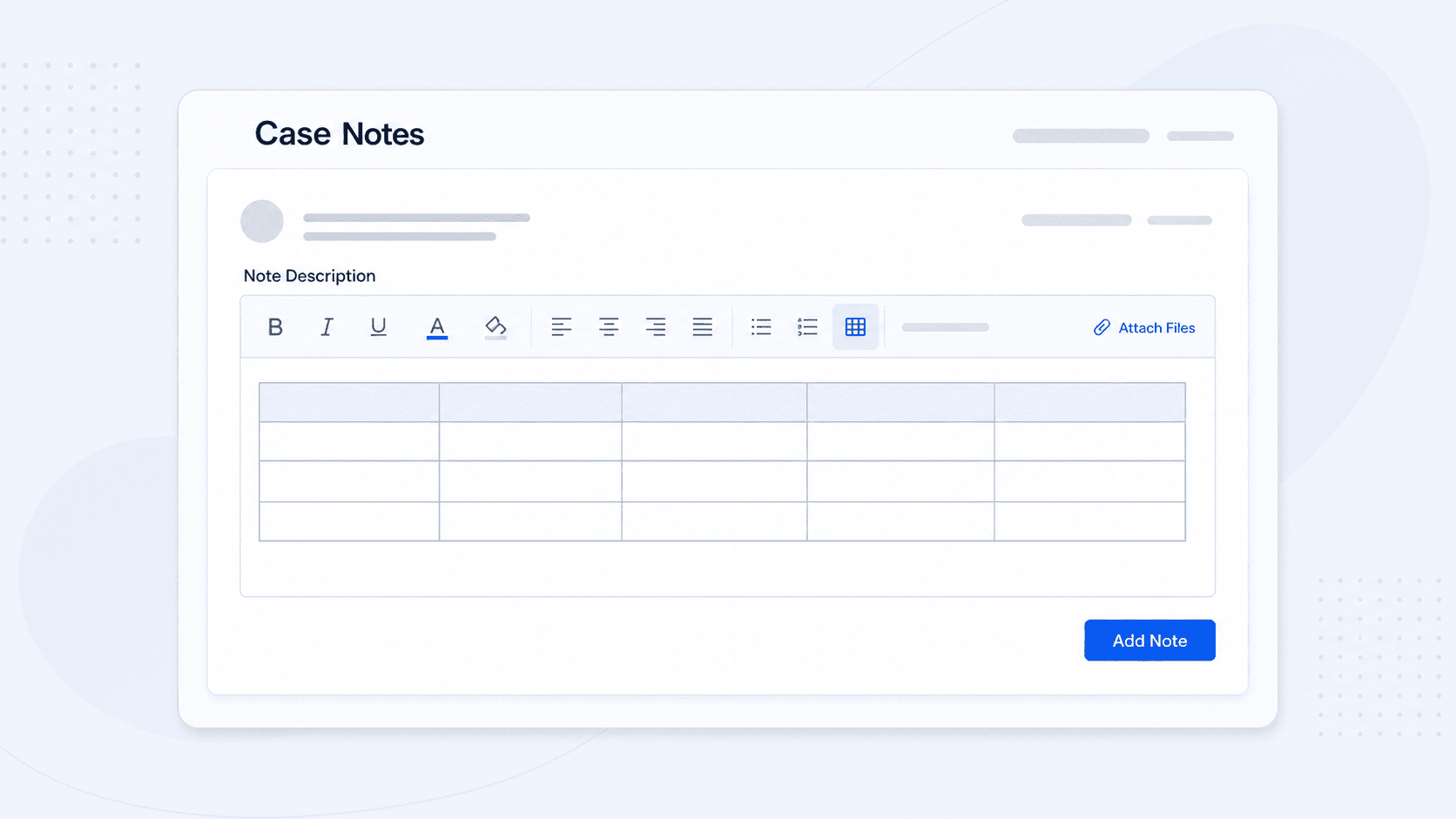
Tables in case notes
Use rows and columns in case notes when structured details are easier to read than paragraphs.
27 February 20261 min read
Case notes can now include tables. This is useful when rows and columns are easier to read than a long paragraph.
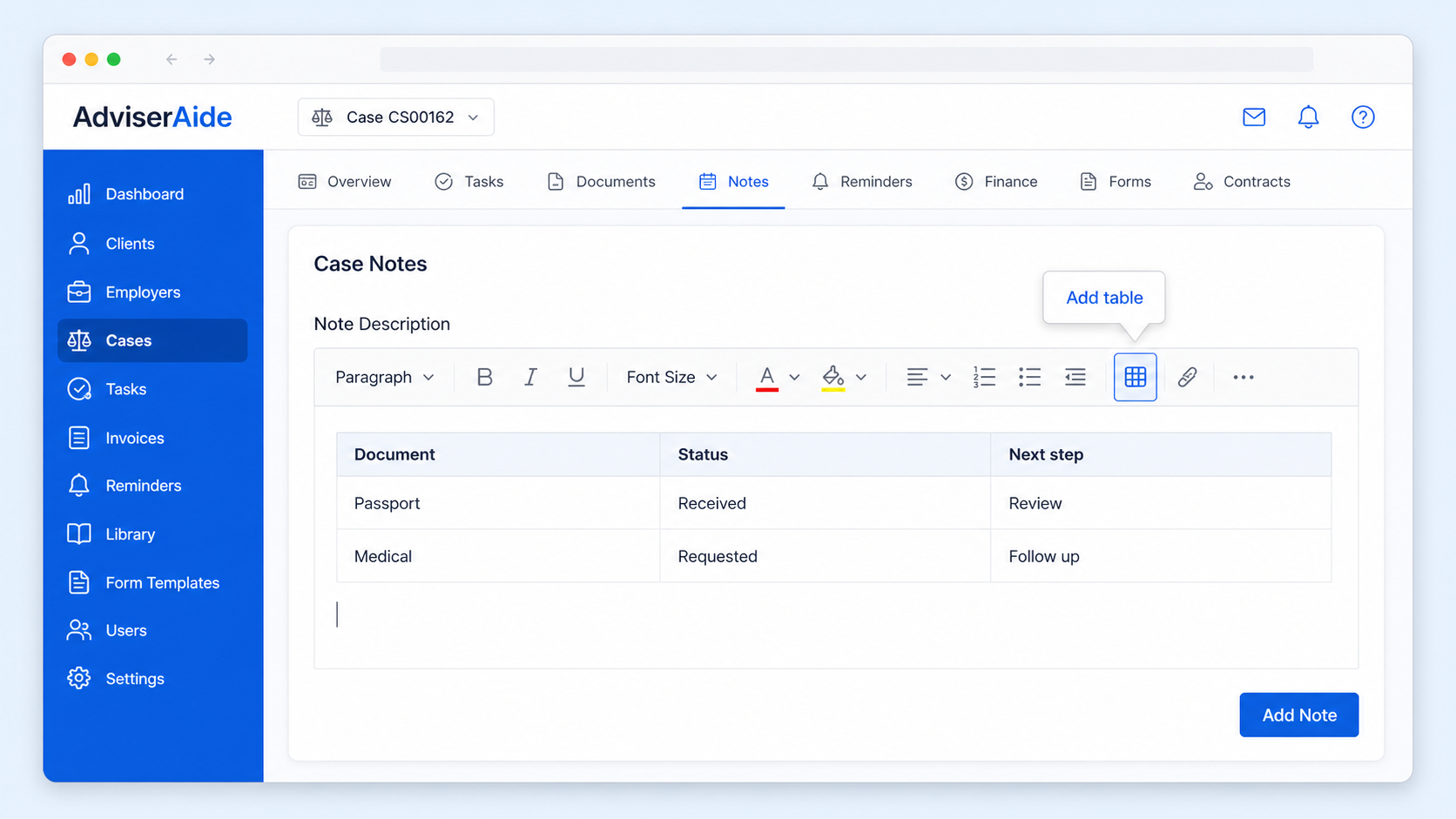
Use tables to record structured details inside the note itself, such as document requirements, next steps, key dates, responsibilities, or comparison points.
When this is useful
- Creating a simple document checklist.
- Recording important dates and next actions.
- Keeping responsibilities clear for the team.
- Comparing a few options in a readable format.
How to use it
- Open the case.
- Go to the Notes tab.
- Add a new note or edit an existing note.
- In Note Description, use the table button in the editor toolbar.
- Add the rows and columns you need.
- Fill in the details.
- Save the note.
Good to know
- Keep tables small so they remain easy to read.
- Use a document or spreadsheet if the information is large or needs detailed calculations.
- Tables are best for quick structure inside the case note, not for replacing full documents.