Back to Release Notes
Attach files to case notes
Keep screenshots, documents, and other supporting files with the note they belong to.
10 April 20261 min read
You can now attach files while adding or editing a case note. This keeps important context close to the update it belongs to, instead of leaving files scattered across emails, folders, or separate messages.
Use it when a note needs supporting information, such as a screenshot, client document, email attachment, signed form, or internal reference file.
How to add an attachment
- Open the case.
- Go to the notes area.
- Add a new note, or edit an existing note.
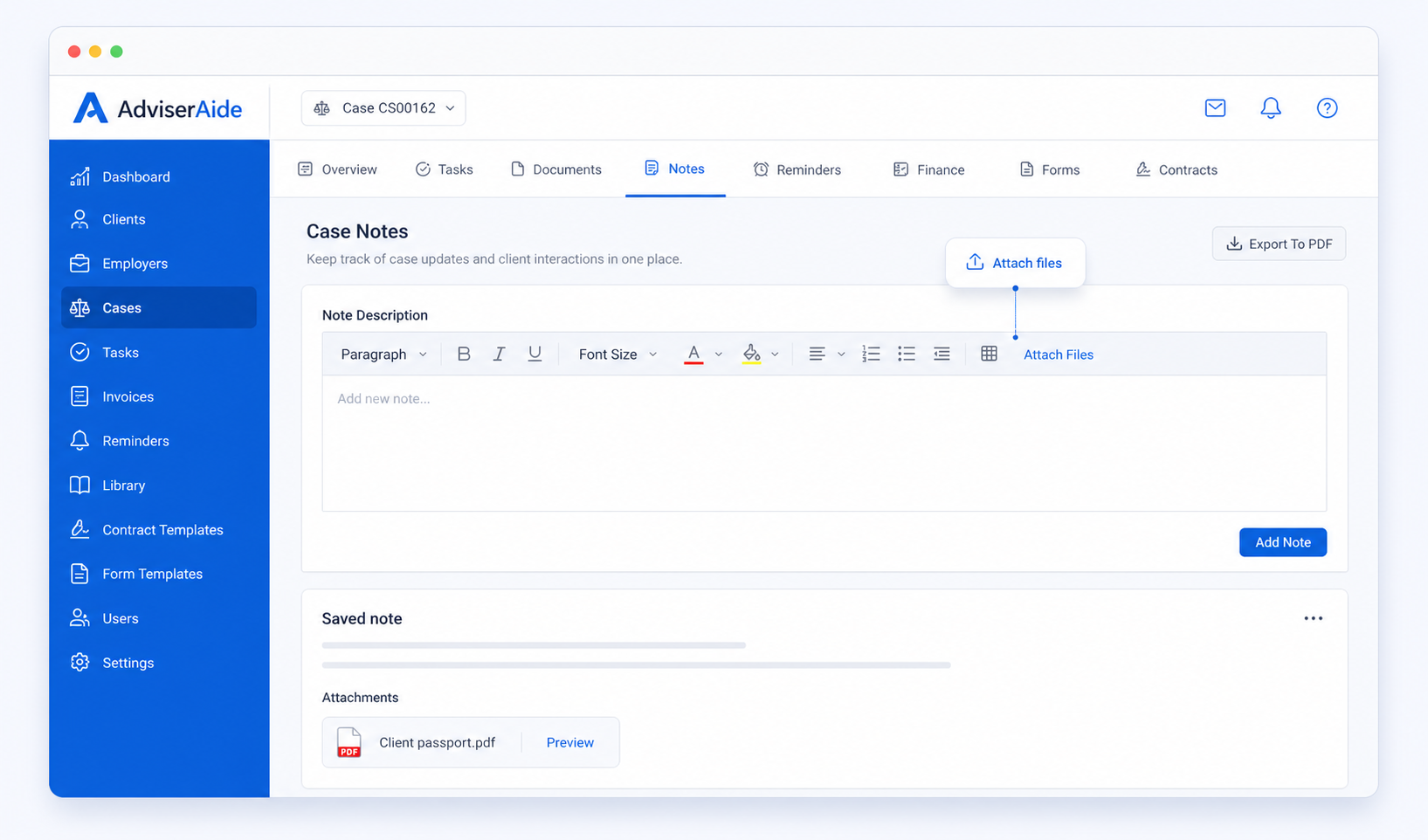
- Click Attach Files in the note editor.
- Choose the file you want to include.
- Save the note.
How to view attachments later
- Open the note.
- Look for the Attachments area.
- Click the file name to preview the file when you need it.
Good to know
- Attach the file to the note where it is most useful.
- Add a short explanation in the note so your team knows why the file is there.
- You can remove an attachment from an existing note if the wrong file was added.
- Keep client files on the correct case so the history stays tidy.