How Immigration Professionals Can Merge, Compress and Organise PDF Documents
Prepare client documents without moving between separate PDF websites. Combine, compress, split and organise files while keeping the finished copy with the case.
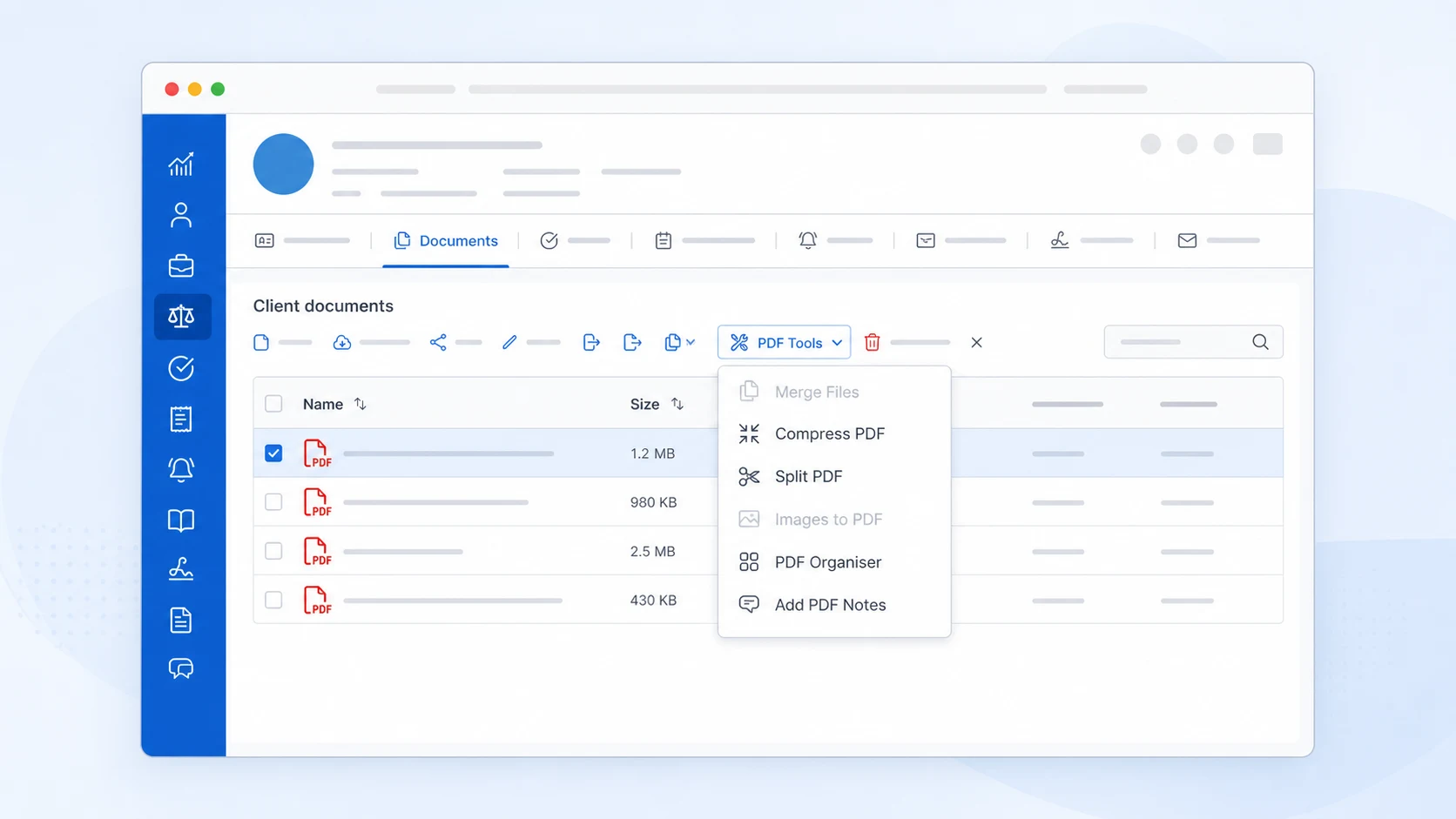
Preparing client documents often means working with PDF files in different ways. You may need to combine several PDFs into one document, reduce a file so it can be uploaded, or save only the pages you need from a larger PDF.
To do this, your team may have to download the files, open a separate PDF website or program, save the result, and upload it back to the case. AdviserAide's PDF Tools let your team complete these tasks from Case Documents or Library, where the files are already stored.
Your original document stays unchanged
PDF Tools save the result as a new copy. Your team can make the required changes without replacing the original file.
Start where your documents already are
Open a case and select Documents, or open Library. Select the PDF files or images you want to work with, then choose the tool you need from the PDF Tools menu. You can also open a PDF and find PDF Tools beside Download.
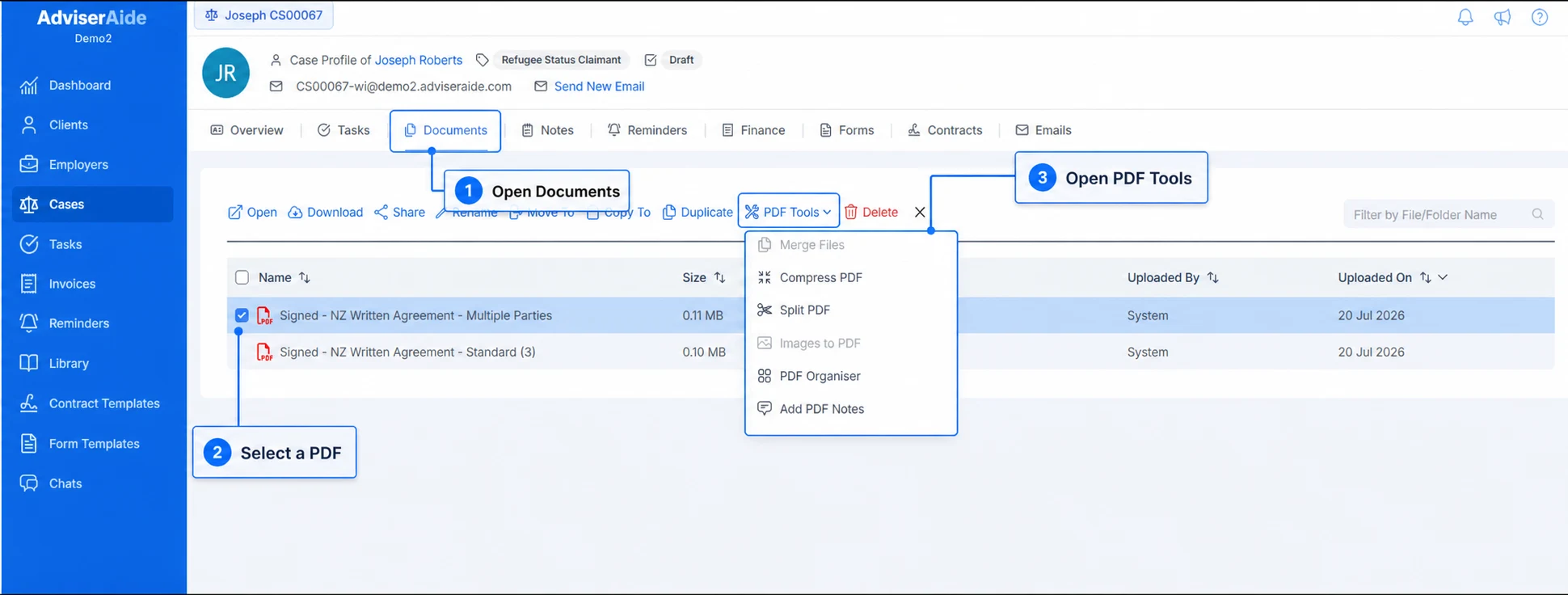
Six everyday PDF tasks in one place
Merge PDF files
Combine several supporting documents into one PDF and choose the order in which they appear.
Compress a PDF
Reduce the size of a PDF before uploading it to a portal or sending it by email.
Split a PDF
Create separate files from page ranges, equal sections or every individual page.
Turn images into a PDF
Arrange JPG or PNG images and turn them into one PDF, with one image on each page.
Organise PDF pages
Reorder, rotate, remove or extract pages, and insert pages from another PDF or image.
Add notes to a PDF
Place short notes on PDF pages when the person reviewing the document needs more context.
Build one document pack from several PDFs
When client documents arrive as separate files, select the PDFs and choose Merge Files. Arrange the documents in the order they should be read, name the finished file and choose where the new copy should be saved.
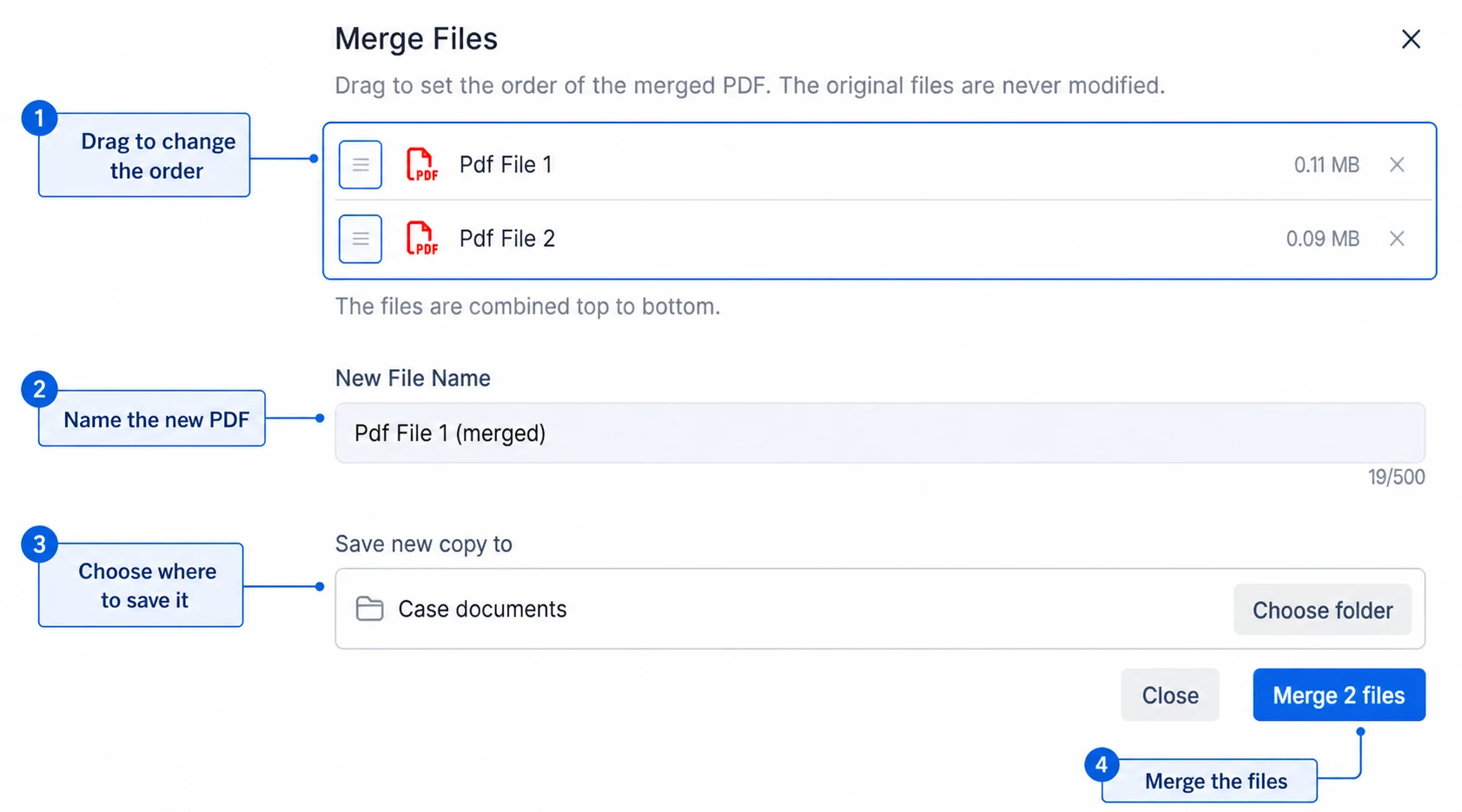
Drag the files until the list matches the order you want. The file at the top will appear first in the new PDF, followed by each file below it. See the full Merge PDF files guide.
Reduce a PDF before uploading or sending it
Large PDF files can be difficult to upload or send. Select one PDF, choose Compress PDF, and start with Balanced (recommended). This is the recommended starting point because it balances document quality and file size.
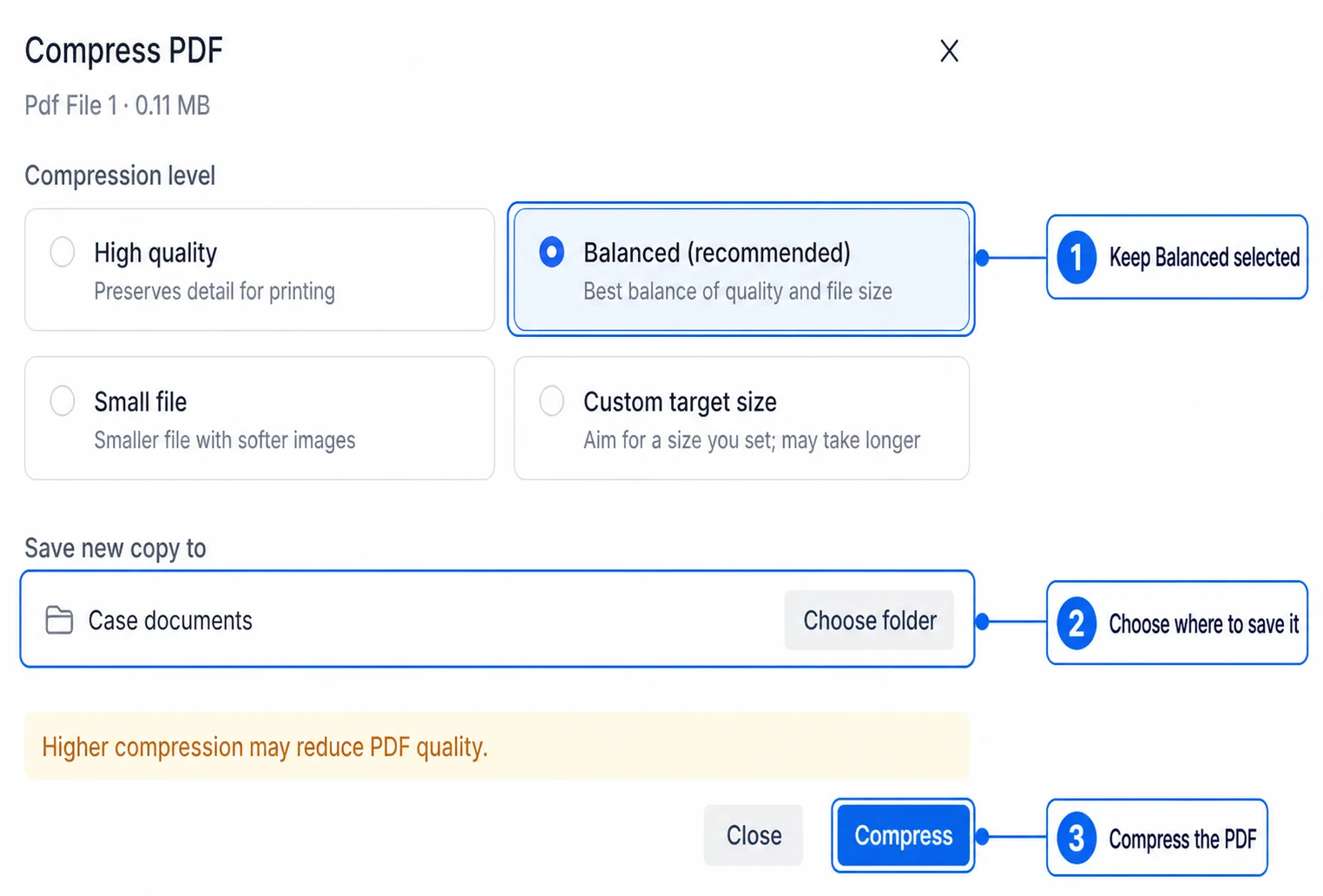
If the Balanced option cannot make the file smaller, AdviserAide will let you know. You can keep the current file or try Small file or a custom target size. See the Compress PDF guide.
Separate the pages you actually need
A single PDF may contain documents that need to be filed or submitted separately. Split PDF can create a file for each page range, divide a PDF into equal parts, or turn every page into its own PDF.
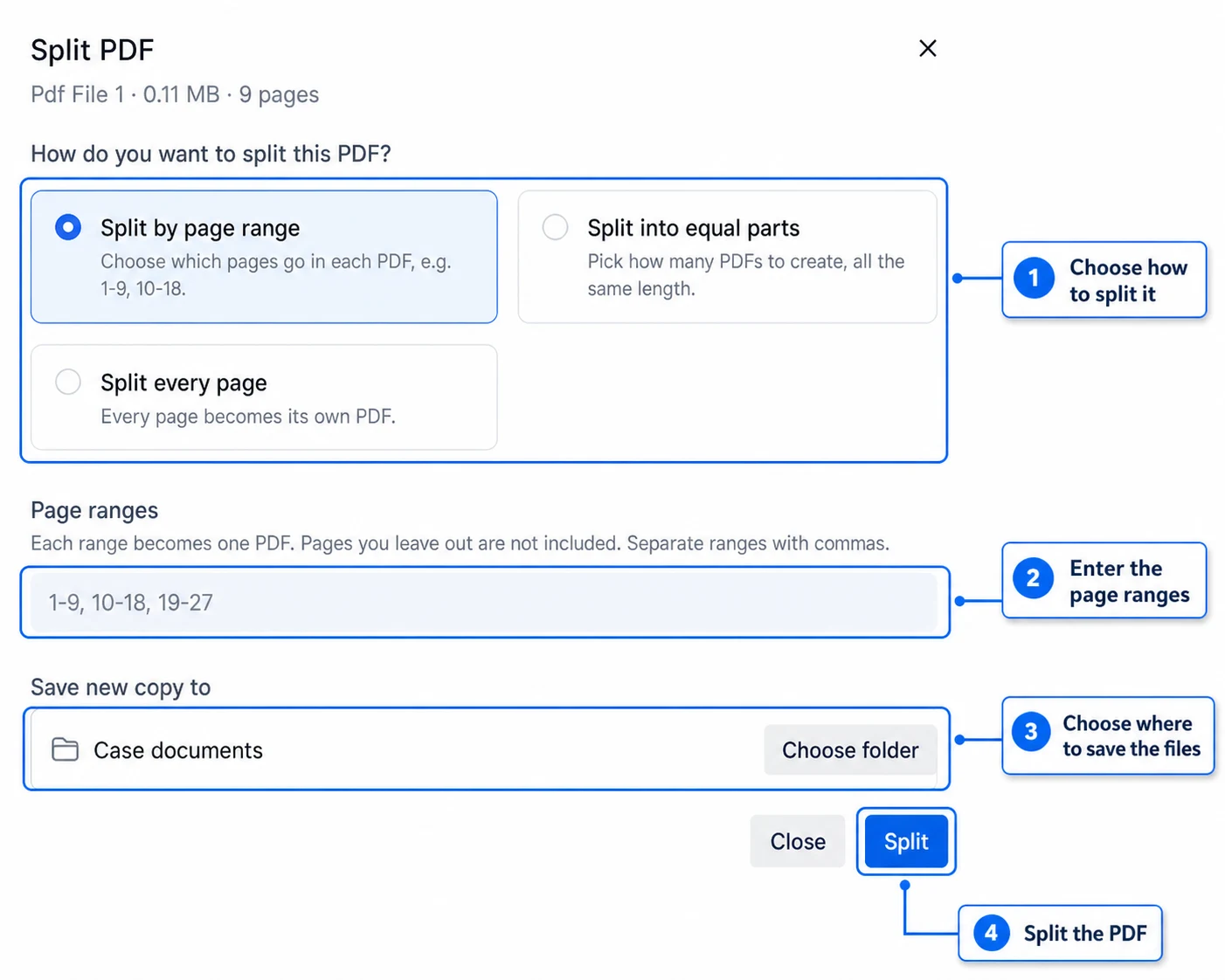
If you enter page ranges such as 1-2, 3-5, 6-9, AdviserAide creates three new PDFs. When splitting a large document into many files, save the results into a new folder so the case view stays easy to scan. See the Split PDF guide.
Reorder, remove or insert PDF pages
The PDF Organiser gives your team a page-by-page view. Drag pages into a new order, rotate scans, remove pages that are not needed, extract selected pages into another PDF, or insert pages from a different PDF or image.
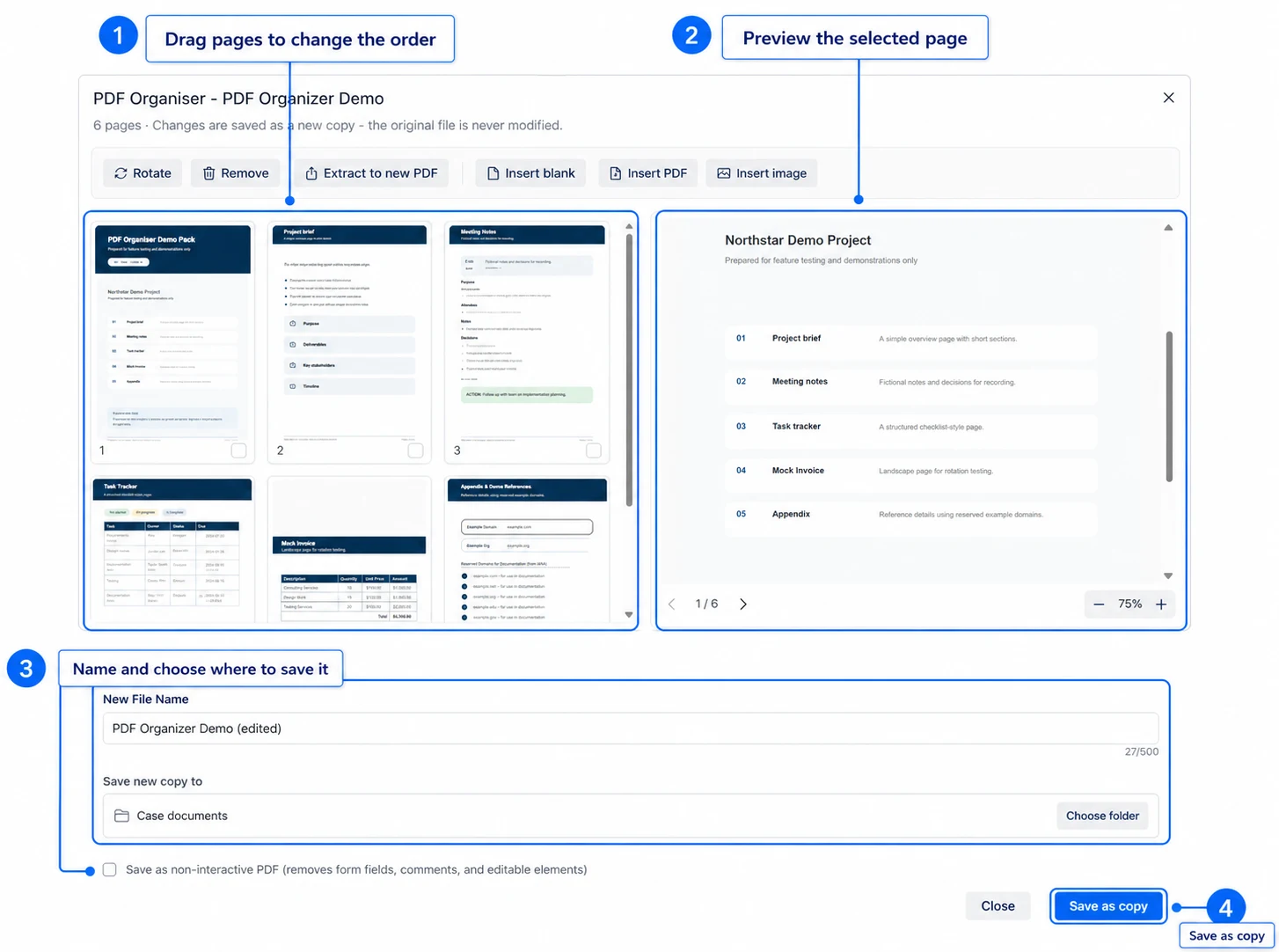
Use these options when a page is upside down, a page needs to be removed, or a page from another file needs to be inserted into the document. See the complete PDF Organiser guide.
Add context directly to a PDF
Sometimes a document needs a short explanation for the person reviewing it. Add PDF Notes lets you place a note on a page, choose its colour and size, and save the annotated document as a new copy.
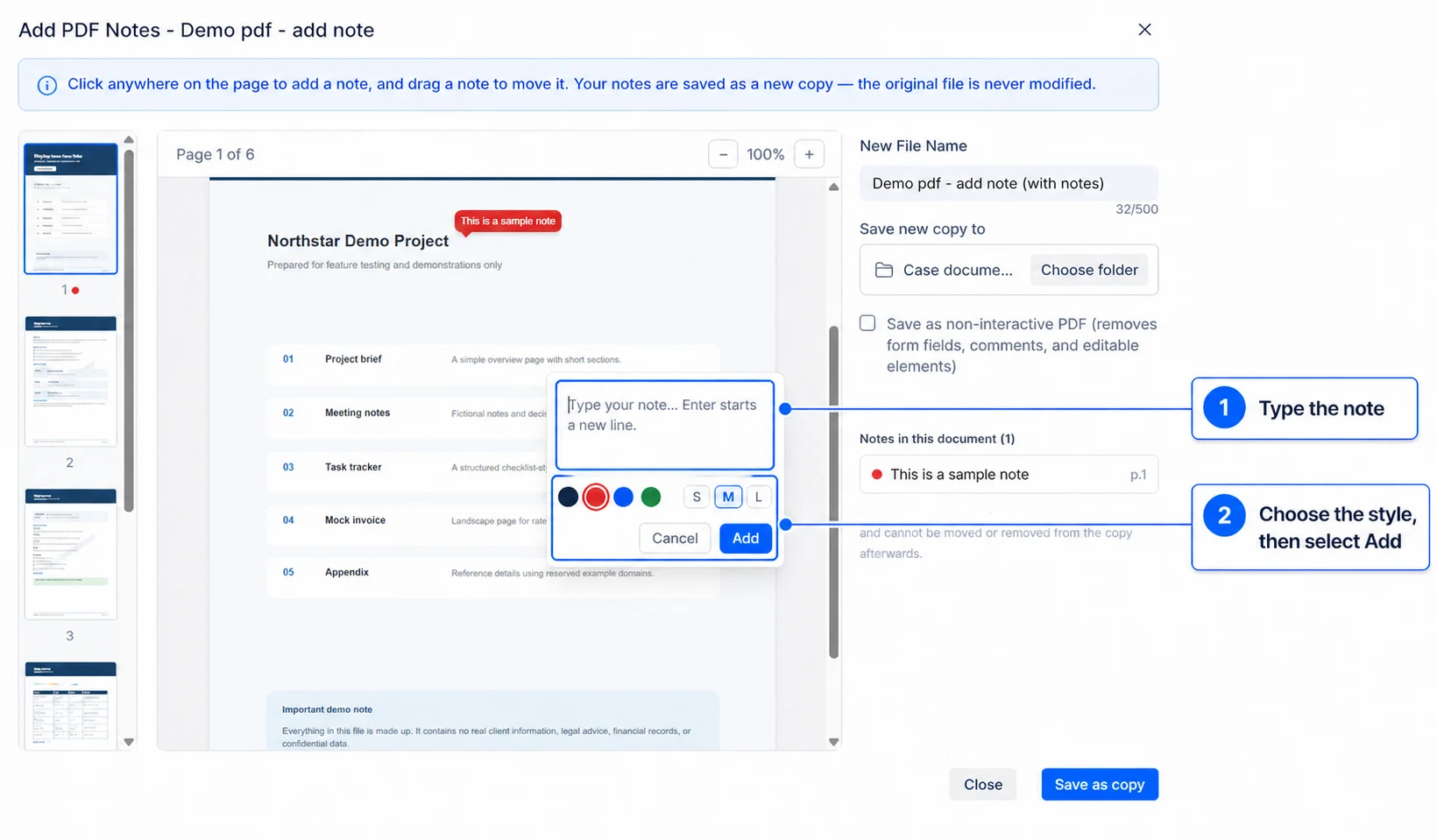
The notes become part of the saved page, making the context visible when the PDF is opened elsewhere. See the Add PDF Notes guide.
Keep the finished file with the work
Each tool lets you name the new file and choose where to save it. Save the result in the relevant case folder or in Library instead of leaving it in your downloads folder.
See every PDF Tool step by step
Open the complete guide for detailed instructions, screenshots and troubleshooting for every PDF Tool in AdviserAide.
Open the PDF Tools GuideIf PDF Tools does not appear in your workspace, the feature may still be rolling out to your organisation.