
Wishing you a joyful holiday season and a Happy New Year - from all of us at AdviserAide.
As we wrap up the year, we're excited to share a new set of features launching today. This release includes several new features and enhancements across AdviserAide.
Here's what's new:
Help Center
We've launched a brand-new Help Center at docs.adviseraide.com. This is your go-to resource for deep dives on every feature in AdviserAide, complete with step-by-step guides and best practices.
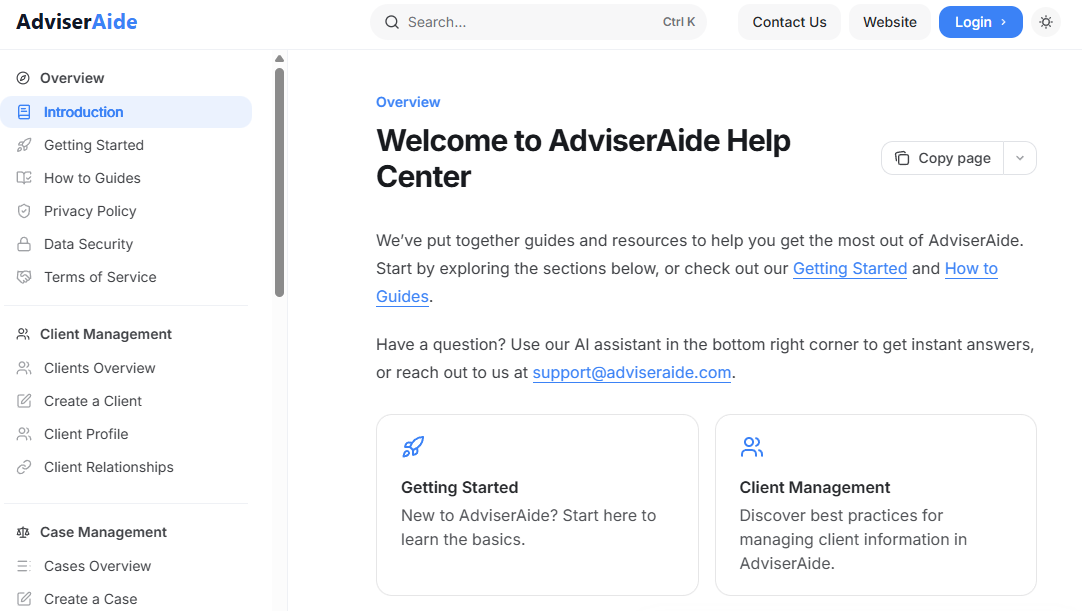
You'll find step-by-step guides on advanced features like digitising PDF forms so clients can sign them directly within AdviserAide, and creating custom forms for collecting data and documents.
The Help Center also includes a built-in AI chat assistant. It's trained on our documentation, so you can ask questions and get answers quickly without searching through pages. If you can't find what you're looking for, our team is always happy to help - email us at support@adviseraide.com
Feature Toggles
We heard from our users that they don't want a cluttered interface filled with features they won't use. To avoid that, AdviserAide now includes feature toggles - so you can turn features on or off and control what you see in your workspace.
To toggle features, head to Settings → Features, where you'll find the new feature toggles.
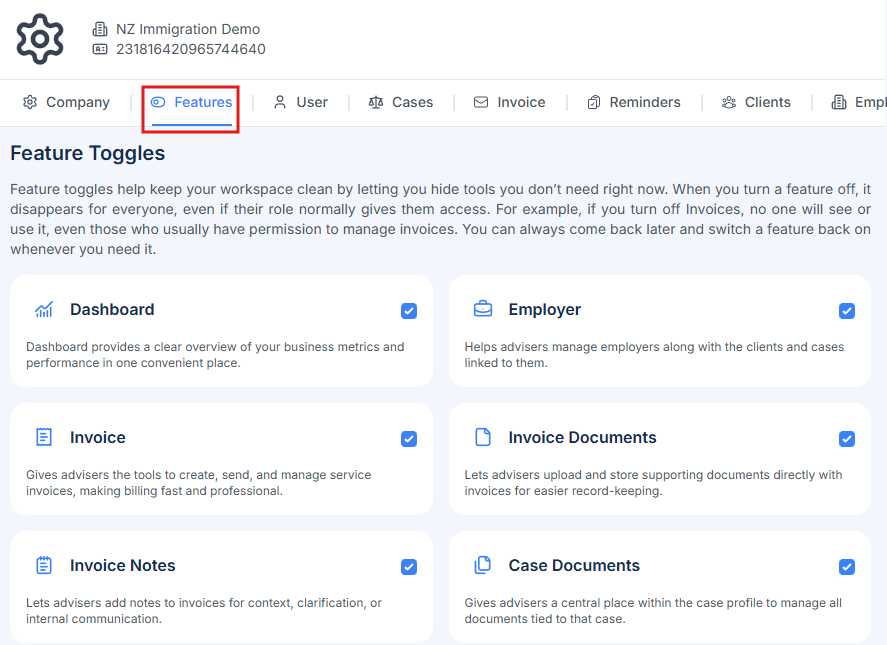
From here, you can turn features on or off based on what's relevant to your practice. As we release new features, they'll appear in this list so you can choose whether to enable them. Your workspace, your rules.
Employer Management
Note: This feature is disabled by default. To enable it, go to Settings > Features.
This is one of our most requested features. You can now manage employers as first-class entities within AdviserAide, just like clients.
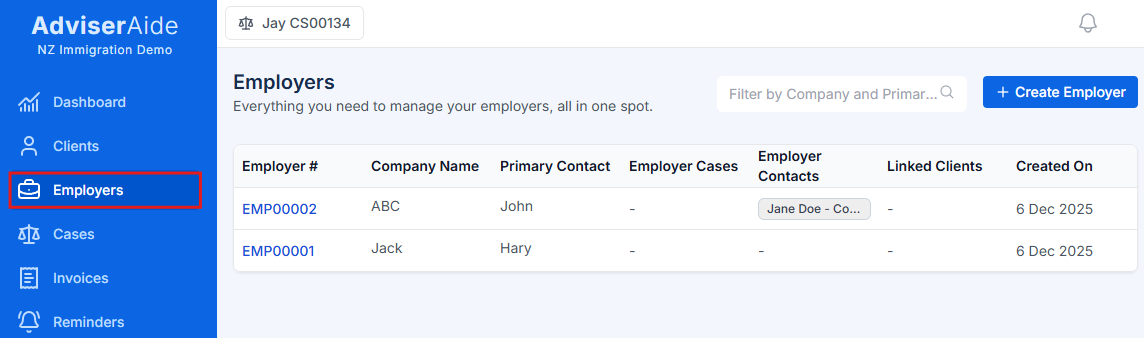
Here's what you can do:
- Create dedicated employer profiles with company details
- Assign employers to client profiles to track employment relationships
- Create cases specifically for employers (separate from client cases)
- Link an employer to a client's case to track who is sponsoring or supporting the application
- Send invoices to employers
We've put together comprehensive documentation to help you get started:
Family Members & Client Linking
Until now, connecting family members within AdviserAide was limited. If two family members each had their own cases, there was no clean way to link their profiles or view related cases together. You could add contacts, but there was no visibility into how clients were connected.
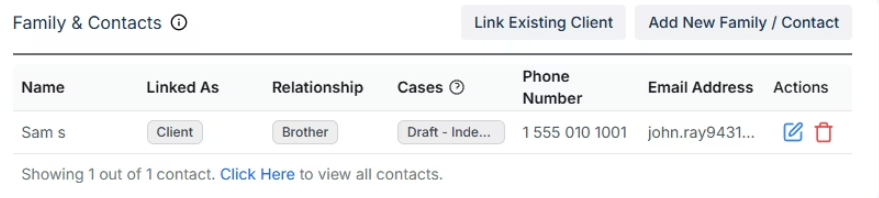
You can now:
- Link existing clients to each other as family members (spouse, child, parent, etc.)
- View linked relationships from either client's profile
- See all related cases across linked family members in one place
This makes it much easier to manage family applications and keep everyone's information connected. For the full guide, check out our client relationship documentation.
Shortcuts - URL Bookmarking
As an adviser, you're constantly juggling external resources: immigration news sites, government portals, industry updates, compliance links, and more. Bookmarking them in your browser works for you, but what about your team? Sharing bookmarks across multiple people quickly becomes a hassle.
Shortcuts solves this. It's a simple way to store and organise external links directly within AdviserAide. Add a link once, and every team member in your organisation can access it instantly. No more hunting through emails or asking colleagues for URLs.
To learn how to create and manage shortcuts, visit: Shortcut documentation
Sending Invoices to Contacts
Previously, invoices could only be addressed to the primary client on a case. But sometimes the person paying isn't the client themselves; it might be a family member, employer, or another contact.
Now, when creating an invoice, you'll see a new "Contact" dropdown. Simply select the contact who should receive the invoice and click "Contact pays." When you generate and preview the PDF, you'll see the contact's details appear on the invoice instead of the client's.
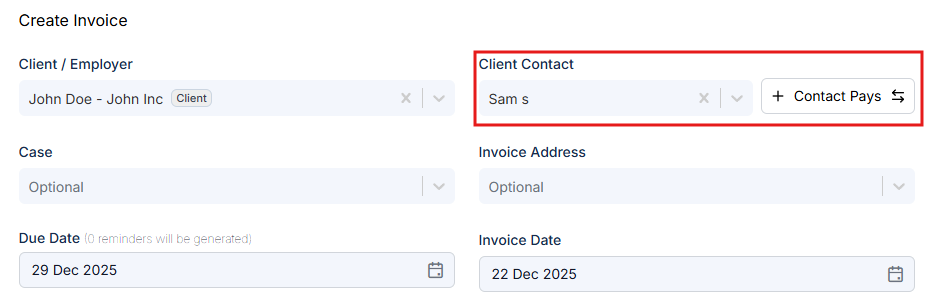
See the step-by-step guide on how to send an invoice to a contact.
Case Tasks
Note: This feature is disabled by default. To enable it, go to Settings > Features.
Managing cases involves a lot of moving parts, and it's easy to forget what needs to be done, especially when you're handling multiple case types. Until now, you had to rely on memory or external tools to track the steps involved in each case.
Introducing Case Tasks. This feature lets you predefine a checklist of tasks for each case category. For example, you can set up all the standard steps required for a student visa application. Then, every time you create a new Student Visa case, those tasks are automatically added and ready to be worked through.
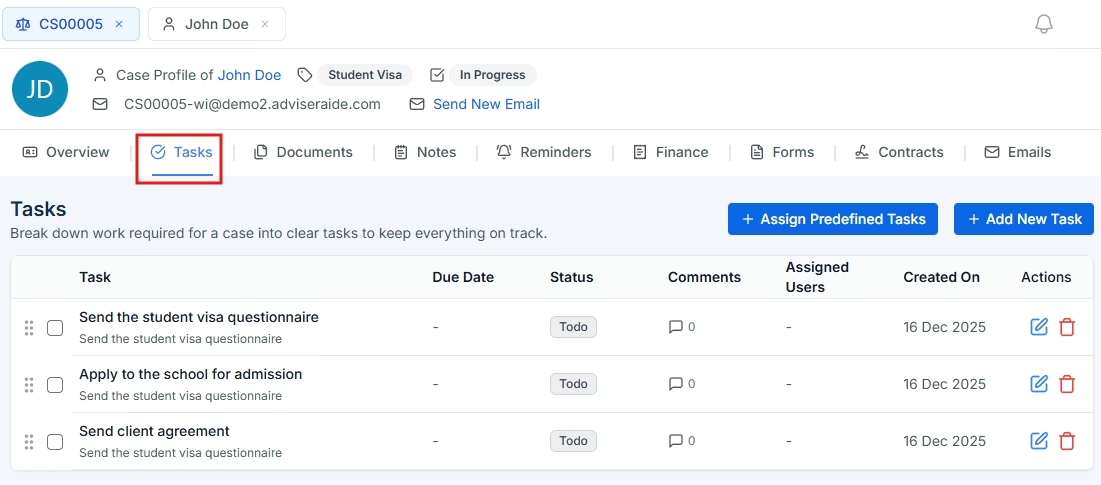
No more starting from scratch. No more forgotten steps. Learn more about case tasks.
Assign Contacts to Cases
There are situations where a case involves more than just the primary client. For example, when creating a case for an elderly family member or child, the guardian or representative often needs to be part of the case record. Their details may need to appear on contracts, correspondence, or official documents.
You can now assign multiple contacts directly to a case. Once assigned, these contacts become available as placeholder fields in your contract templates. This means you can automatically populate contracts with the correct contact information when the template is applied to the case.
To learn how to assign contacts to cases, view the full documentation.
Category Ordering
Category ordering feature gives you control over how case categories appear when creating or updating cases. Until now, categories were always displayed in alphabetical order.
You can now choose from the following ordering options:
- Alphabetical (A-Z)
- Display Order (a custom order you define)
- Most Used (ranked by frequency of use)
- Most Used with Visa Group (visa groups first, then ranked by usage)
- Visa Group Only (grouped alphabetically by visa type)
To configure this setting, go to Case Categories and click Category Settings. Your selection applies organization-wide, so everyone on your team sees case categories in the same order.
For detailed instructions, see the docs.
That's all for now. We have so much planned for the new year and can't wait to share more as we continue building.
Thank you for helping us shape AdviserAide. Wishing you a Merry Christmas and a Happy New Year from all of us.
The AdviserAide Team
Ready to Try These New Features?
Log in to your AdviserAide account to start using these features today. New to AdviserAide? Try it free for 3 months.
Book a Demo